
 Chrome に追加
APIキーでOpenRouterをブラウザから直接使う方法
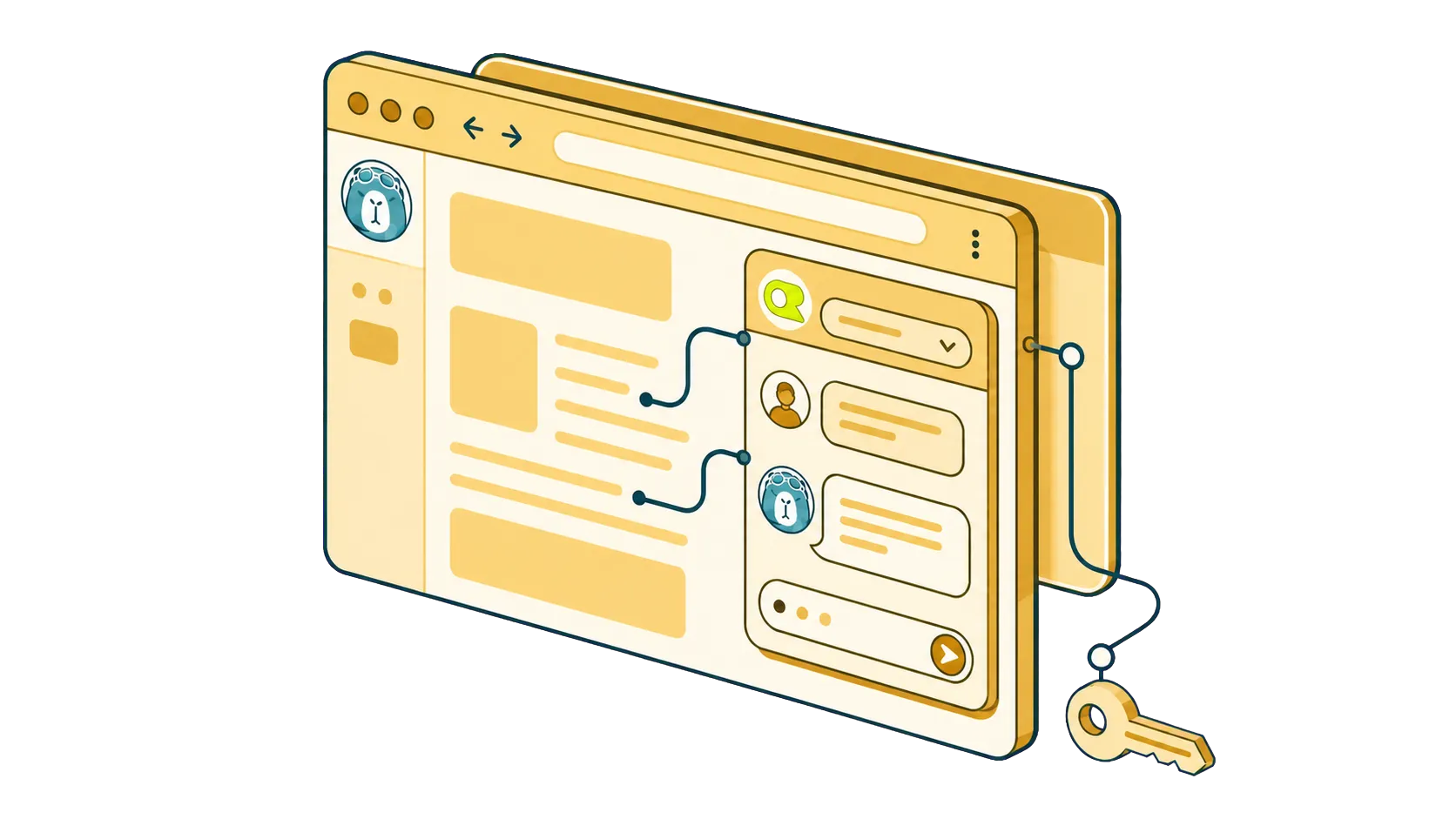
OpenRouter は、いまのAIシーンでまだ十分に知られていない強力な選択肢かもしれません。アカウント、APIキー、残高がそれぞれ一つあれば、OpenAI、Anthropic、Google、DeepSeek、Mistral、Kimiなど、多数のAIラボが提供する数百種類のモデルを使えます。月額制ではなく使った分だけ支払い、モデルも好きなタイミングで切り替えられます。
OpenRouterには独自のチャット画面があり、モデルのお試しには十分です。ただ、仕事そのものは別タブのチャットでは進みません。普段読んだり書いたりしているページ上で進みます。本当に便利なのは、どのWebページでもブラウザの中でそれらのモデルを使えることです。
そこで役立つのが SurfMind です。以下では、OpenRouterをブラウザに接続する手順を順番に説明します。
OpenRouterとは?
OpenRouter はAIモデルのための統合APIです。一つのアカウント、APIキー、前払い残高で、数百種類のAIモデルを利用できます。新モデルもリリースされるとすぐに追加されます。月額ではなく利用量に応じて支払い、どのモデルへのリクエストも同じ残高から差し引かれます。
SurfMind はそのカタログをブラウザに持ち込みます。Chrome、Edge、Safari、Firefoxなど主要ブラウザに対応したBYOK(自分のキーを持ち込む)拡張機能で、すべてのWebページにAIチャット用サイドバーを追加します。OpenRouterのキーを貼り付ければ、カタログ内の任意のモデルとチャットでき、今見ているページを文脈として読ませたり、会話の途中でモデルを切り替えたりできます。(BYOKが初めてなら、Bring Your Own Keyの詳しい解説をご覧ください。)
別のチャットUIではなく、ブラウザ内でOpenRouterを使う理由
単独のチャットページは一つのタブにあります。一方、あなたの仕事はあちこちにあります。
- 仕事はタブの中で進みます。 読んでいる記事、作成中のドキュメント、コードレビュー、商品ページ、論文。これらを別のチャットへコピー&ペーストし続けるのは、すぐにうんざりします。
- 文脈は重要です。 今開いているページを見られるAIは、毎回ゼロから背景を説明しなければならないAIより、的確な答えを返します。
- タスクごとに最適なモデルは違います。 ニュース記事の要約なら、安価または無料のモデルで十分。契約書を慎重に分析するならClaudeを使いましょう。OpenRouterなら、サイドバーでその場ですぐ切り替えられます。
それでは設定していきましょう。
ステップ1:OpenRouterアカウントを作成し、APIキーを取得する
- openrouter.ai にアクセスして登録します。
- APIキーのページを開き、Create Key をクリックします。
surfmind-browserのように覚えやすい名前を付けます。- キーは一度しか表示されないため、すぐにコピーしてください。失くした場合は削除して新しく作成すれば大丈夫です。
キー管理について: APIキーはパスワードと同じように扱ってください。デバイス上にローカル保存するツールだけで使用しましょう。OpenRouter Keysページではいつでもキーを無効化でき、キーごとに利用上限も設定できるため安心です。
ステップ2:数ドル分をチャージする(または無料で始める)
OpenRouterは前払い制です。Credits を開いて5〜10ドルを追加すれば、一般的な使い方なら数週間から数か月は使えます。中価格帯モデルとの通常のやり取りなら、費用は1セントの端数程度です。
知っておくと便利な点が二つあります。
- 無料モデルがあります。 OpenRouterでは、Gemma、OSS、Nemotronなど、優秀なオープンソースモデルの無料版を提供しています。日ごとのレート制限はありますが、十分な性能のモデルを文字どおり0ドルで使えます。OpenRouterのモデルカタログで価格を無料に絞り込むと、現在の一覧を確認できます。ただし、一部の無料モデルではデータが使用される場合があるため、利用前にプロバイダーのプライバシーポリシーを確認してください。
- 一度10ドルをチャージすると無料モデルの上限が上がります。 執筆時点では、10ドル以上のクレジットを購入したアカウントは、無料モデルの一日あたりの利用枠が大幅に増えます。AIに使う10ドルとしては、かなりお得です。
ステップ3:SurfMindでOpenRouterをブラウザに接続する
いよいよ本題です。キーをSurfMindに登録しましょう。
- surfmind.ai から、ブラウザの拡張機能ストアで SurfMindをインストールします。
- SurfMindを開き、Use your API key を選択します。
- ドロップダウンから OpenRouterのモデルを選択します。SurfMindがOpenRouterのカタログ(数百モデル)を読み込みます。
- OpenRouterのAPIキーを貼り付けます。
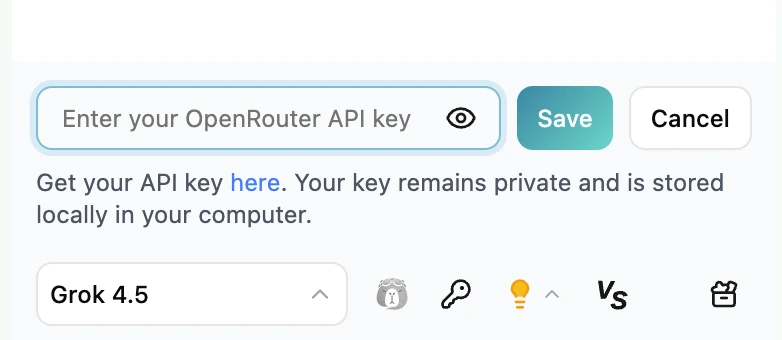
これで完了です。キーはブラウザ内にローカル保存され、リクエストはブラウザからOpenRouterへ直接送られます。
接続後にできること
ブラウザ内のOpenRouterが単独のチャットタブより便利な場面をご紹介します。
読んでいるページについて会話する。 長い記事、ドキュメントページ、情報量の多いレポートでサイドバーを開き、内容について質問できます。AIモデルがページの内容を見られるので、コピー&ペーストは不要です。
作業の途中でモデルを切り替える。 DeepSeekのような低コストモデルでメールの下書きを作り、重要な段落だけClaudeで磨き上げる。会話もサイドバーもそのままで、クリック二回です。
実際の仕事でモデルを比較する。 話題の新モデルは本当に優れているのか気になりますか?同じページ上で二つのモデルに同じ質問を投げ、自分の目で確かめましょう。
メモを残す。 SurfMindでは会話をNotion、Obsidian、テキスト、PDFへエクスポートできるため、調査セッションがチャット履歴に埋もれて消えることはありません。
よくあるつまずきの対処法
「Invalid API key」または401エラー。 ほとんどの場合、コピー&ペーストのミスです。文字が抜けているか、余計なスペースが入っています。新しいキーを作って、もう一度貼り付けてください。「Bearer」という語を付ける必要はありません。ツール側で自動的に追加されます。
「Insufficient credits」または402エラー。 前払い残高が空です。OpenRouter Creditsページでチャージするか、無料モデルに切り替えてください。
特定のモデルが応答しない。 モデルの提供元で障害が起きることはあります。ここでOpenRouterの強みが生きます。似たモデルを選んで作業を続ければよく、ある一社のステータスページを眺めて待つ必要はありません。
まとめ
OpenRouterは、いちばん面倒な部分を解決しました。一つのキー、一つの残高ですべてのモデルにアクセスできます。そして、ブラウザはすでに手元にある最高のインターフェースです。OpenRouterのカタログと、あらゆるページに常駐するSurfMindのサイドバーを組み合わせれば、一つのChatGPTタブを使うより少ない手間で、AI市場の選択肢を柔軟に使い分けられます。
試してみませんか?
SurfMindを無料でインストールし、OpenRouterキーを貼り付ければ、どのWebページでも数百種類のモデルとチャットできます。キーはブラウザ内にプライベートに保存され、サブスクリプションも不要です。
関連記事
すべて表示
BYOKの意味とは?「Bring Your Own Key」とAIツールの未来
BYOKとは、自分のAPIキーをAIツールに接続して、サブスクではなく利用分だけ支払う仕組みです。40~90%節約し、5分で始める方法を解説します。
プライバシー最優先のブラウザAI拡張機能利用ガイド
プライバシーを犠牲にせずにAIブラウザ拡張機能を使うには?BYOK、ローカルストレージ、データを保護する詳細なコントロールについて解説します。
SurfMindでローカルLLMやカスタムAIをブラウザに接続する
SurfMindは、ローカルモデルやOpenAI互換のあらゆるAIプロバイダーに接続できます。多くの人がつまずく設定ミスを手早く確認できるセルフチェックリストと、Ollama、LM Studio、Poe、z.ai、Together、Groq、AWS Bedrockなどにそのまま貼り付けられるURLをまとめました。