
 Add to Chrome
How to Use Ollama to Chat with Any Web Page
You've probably noticed the shift happening. ChatGPT is everywhere, but so is the growing unease around it. What happens to the documents you paste in? Who reads your prompts? Can your employer or clients tell when you've been using it?
These are fair questions. And there's a growing crowd of people who've quietly stopped asking them because they've moved their AI setup local.
That's what this post is about. We'll walk through Ollama, what it is, how to set it up, which models are worth using, and then get into the part that's genuinely exciting: using AI directly inside your browser to interact with any web page you're reading. No subscriptions. No data leaving your machine unless you want it to.
Whether you're a developer, a researcher, a journalist, or just someone who's curious about AI and doesn't love the idea of every query being logged somewhere, this is for you.
First things first - what is Ollama?
Ollama is a free, open-source tool that lets you download and run large language models directly on your own computer. Mac, Windows, Linux, it works on all of them.
Think of it like a model manager. You pick a model, download it once, and it runs entirely on your hardware from that point on. No internet connection needed. No usage costs. No third-party server processing your queries.
At the time ChatGPT first launched, powerful AI models were only accessible through cloud services. Now you can run comparable models completely locally and privately, or, if you need more horsepower, tap into Ollama's cloud without switching tools or changing your workflow. More on that in a bit.
The practical upside is bigger than it sounds. You can feed Ollama sensitive documents, private notes, confidential web pages, and depending on which mode you're using, none of that needs to travel anywhere. It also means you're not paying per-token fees that quietly compound into a real monthly cost.
What do people actually use Ollama for?
Before getting into setup, it's worth grounding this in real use cases, because "run AI locally" can sound abstract.
People use local models for a surprisingly wide range of things: summarizing long reports, drafting emails, debugging code, doing research without wanting their queries stored, analyzing contracts, processing meeting notes. Developers use it to test model behavior in a controlled environment. Writers use it to get feedback on drafts without worrying about their work being used as training data. Students use it to work through complex topics without burning through a subscription.
The common thread is control. People who use Ollama tend to want to work with AI on their own terms, not through a subscription portal that can change pricing, rate-limit them, or log their sessions.
Setting up Ollama
What you'll need
You don't need a cutting-edge machine, but RAM matters. We recommend at least 16GB to have a smooth experience with most models. 8GB will technically work, but you'll be limited to the smallest models and response times can feel sluggish. If you have a Mac with Apple Silicon, you're in a particularly good spot, since the unified memory architecture handles local AI very efficiently. Windows and Linux work great too.
Install it
Ollama supports major platforms (macOS, Linux, Windows). The easiest way to install:
# On macOS or Linux
curl -fsSL https://ollama.com/install.sh | sh

# Or use Homebrew on macOS
brew install ollama

# On Windows, download the installer from Ollama’s website https://ollama.com/download/windows
Once installed, Ollama runs a local server in the background on port 11434. You can verify it's working by opening a browser and visiting http://localhost:11434, you should see a confirmation message.
Pull your first model
Open a terminal and run:
ollama pull llama3.2This downloads Meta's Llama 3.2 model to your machine (~2GB). The run command also handles the download automatically if you skip straight to:
ollama run llama3.2Type your question. Get an answer. You're now running a capable language model, completely on your own hardware.
Which model should you use?
Ollama's library has over 100 models, which can feel overwhelming at first. Here's a practical starting point:
| Model | Good for | RAM needed |
|---|---|---|
gemma3:2b |
Older or lower-spec machines | ~4GB |
llama3.2 |
General everyday use | ~8GB |
mistral |
Speed and coding tasks | ~8GB |
deepseek-r1 |
Analysis, reasoning, research | ~8GB |
llama3.3:70b |
Maximum local capability | ~32GB+ |
If you're just starting out, llama3.2 is the right pick. It's fast, well-rounded, and runs comfortably on most modern laptops.
You can check the list of installed models using this command:
ollama listOne thing worth knowing: these models have a knowledge cutoff date and don't have access to live information. For real-time content, like a web page you're currently reading, you'll need to feed them the context directly. Which is exactly what we're building toward.
What if you need a bigger, more powerful model?
Local models are impressive, but they're limited by your hardware. A 70B parameter model needs serious RAM. A 671B model simply won't run on a personal computer.
This is where Ollama's cloud models come in. Released in late 2025, they let you run massive models on datacenter-grade hardware using the exact same Ollama interface you already know. Same commands, same API, same tools.
ollama run deepseek-v3.1:671b-cloudAvailable cloud models include:
deepseek-v3.1:671b-cloud: one of the most capable open-weight models availableqwen3-coder:480b-cloud: purpose-built for coding tasksgpt-oss:120b-cloudandgpt-oss:20b-cloud: OpenAI's open-weight models
Cloud models behave exactly like local ones. The only difference is they require signing in to ollama.com first:
ollama signinAnd importantly: Ollama's cloud does not retain your data. So you get the power of large cloud models without the usual privacy trade-off.
The practical upshot: use local models for sensitive work where nothing should leave your machine. Switch to cloud models when you need maximum capability. Ollama handles both seamlessly, you just pick the model tag that ends in -cloud.
The part that actually changes how you work: chatting with web pages
Here's where things get interesting.
Ollama on its own is useful. But connecting it to your browser, so you can point it at any web page and ask questions about what's on screen, is where the workflow shifts from "cool experiment" to something you'll actually reach for every day.
Think about what that unlocks:
- Reading a dense research paper? Ask the model to summarize the methodology, explain the findings in plain English, or flag anything that seems like a stretch.
- Reviewing a competitor's pricing page? Ask what the differentiators are, or what's conspicuously absent.
- Going through a long news article? Get the key claims, check if the headline matches the content, hear the counterargument.
- Looking at a job listing? Ask whether your experience actually matches what they're describing.
- Working through a legal document or terms of service? Get a plain-language breakdown without pasting sensitive text into a cloud tool.
All on your own terms. The page content goes to whichever model you've chosen.
How to do it with SurfMind
SurfMind is a browser extension built for exactly this. It reads the content of whatever page you're on and lets you have a real conversation about it directly in your browser, without copying and pasting anything.
It supports local Ollama models out of the box, as well as Ollama's cloud models and gives you a capable AI assistant that works across the entire web on your own terms.
Here's how to connect them:
Step 1. Before launching Ollama, enable browser access with this one-time command:
# Mac/Linux
OLLAMA_ORIGINS="*" ollama serve

# Windows (PowerShell)
$env:OLLAMA_ORIGINS="*"; ollama serve
Getting a "port 11434 already in use" error? This means the Ollama app is already running in the background. Quit it first on Mac, look for the Ollama icon in your menu bar and select Quit; on Windows, find it in the system tray. Then run the command above again.
Step 2. Install SurfMind from the Chrome Web Store and open it on any page.
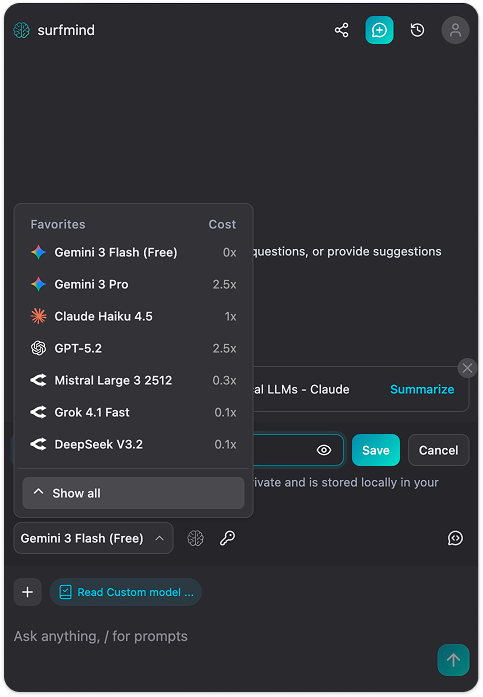
Step 3. Click the model name at the bottom of the SurfMind panel to open your Favorites, then switch to the Custom tab.
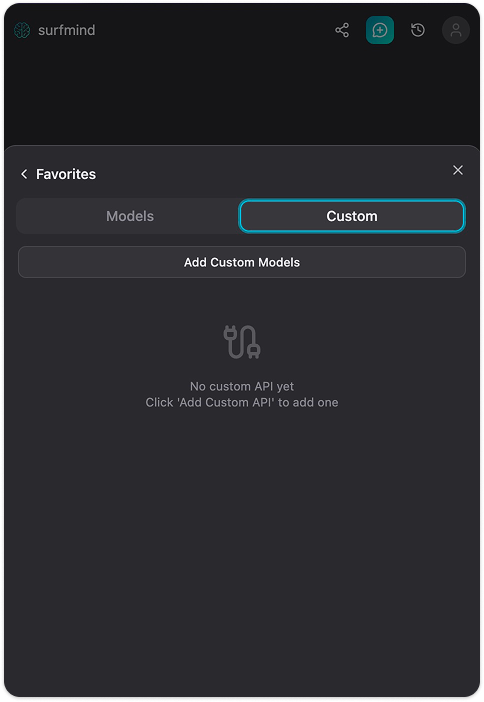
Step 4. Click Add Custom Models. A "Custom Model API" form will appear. Click the dropdown arrow next to the API Name field, you'll see a Presets menu with Ollama already listed. Select Ollama and it will fill in all the fields automatically:
- API URL:
http://localhost:11434/api/chat - Models URL:
http://localhost:11434/api/tags - API Key Header: None
- API Key: (leave empty)
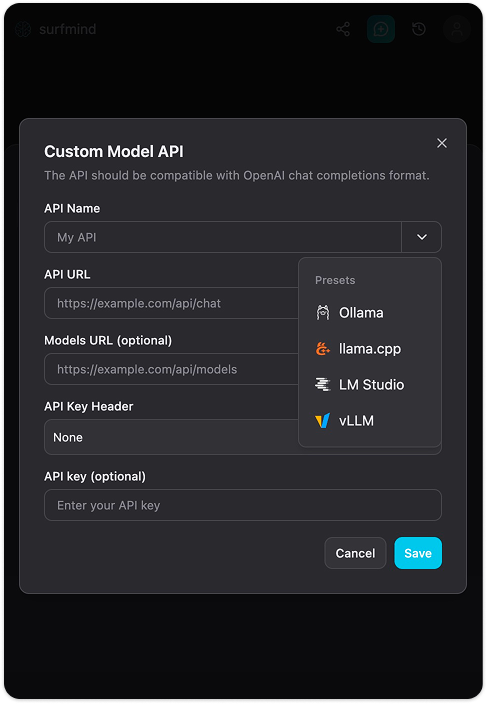
Step 5. Hit Save. SurfMind will connect to your local Ollama instance and pull the list of models you have installed. They'll appear under the Ollama section, ready to select.
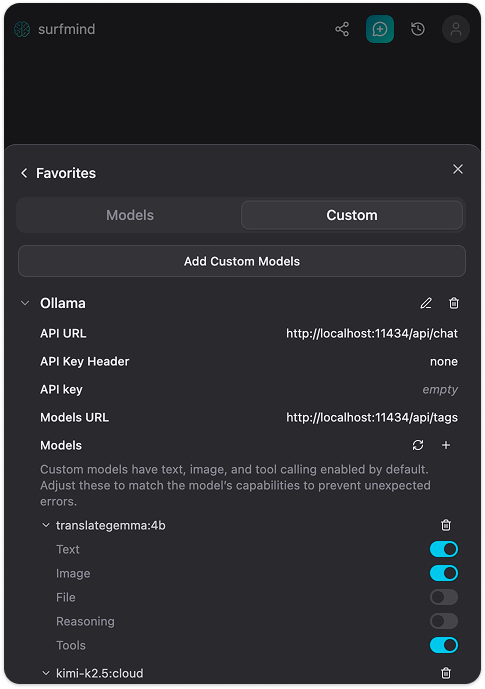
Now navigate to any web page, open SurfMind, pick your Ollama model from the bottom picker, and start asking questions about what's on the page. That's it.
Some practical examples worth trying
For researchers and students: Open any academic article and ask "what's the main argument here?" or "what limitations do the authors acknowledge?" You'll orient yourself in seconds instead of skimming the whole piece to find the relevant section.
For developers: Pull up documentation you're working with and ask specific questions about it. Great for navigating unfamiliar APIs or frameworks without breaking your flow to open a separate chat window.
For business use: Point it at earnings reports, press releases, competitor pages, or industry analysis. Ask what's notable, what's missing, or what questions it raises. For heavy analysis, swap in a cloud model for more depth.
For privacy-conscious everyday use: Any time you'd normally paste something into ChatGPT but hesitate because of what's in it, this is the alternative.
A few honest caveats
No AI tool is infallible. Models will occasionally produce confident-sounding answers that are wrong. This is a limitation of all language models, not a local-specific problem. For anything where precision matters like legal analysis, medical questions, financial decisions, treat the output as a starting point worth verifying, not a final answer.
That said, quality has come a long way. Smaller local models handle most everyday tasks well, and if you need more firepower, Ollama's cloud models close the gap considerably.
Worth trying, even just once
The local AI space has matured faster than most people realize. A year ago this required meaningful technical effort. Today, you're two terminal commands and one browser extension away from a capable AI assistant that works on any page on the web privately, for free, and completely on your own terms.
If you've been curious about running your own AI setup but assumed it was too complicated, Ollama is what makes it approachable. Install it this afternoon. Pull a model. Open SurfMind on the next article you were going to read anyway. See how it changes the experience.
And if you try it, let us know what you end up using it for. The use cases people find are always more creative than anything we'd anticipate.
Your local AI model is running. Now put it to work on every page you browse.
Related posts
View all
Ollama vs LM Studio: Which Local AI Tool Is Right for You?
A practical, no-hype comparison of Ollama and LM Studio for running AI models locally in 2026, plus how to use either one to chat with any web page.
Private AI in Firefox: Run Local Models with Zero Telemetry
Add a private AI assistant to Firefox that runs on local models, so your page content never leaves your machine. No telemetry, no cloud, no compromise.
The Best Browser Extensions for Local AI Models in 2026 (Ollama, LM Studio & More)
The best browser extensions for running local AI models in 2026, from polished local+cloud sidebars to open-source Ollama tools. Chat with any page, privately.