
 Add to Chrome
How to Export AI Chats to Obsidian
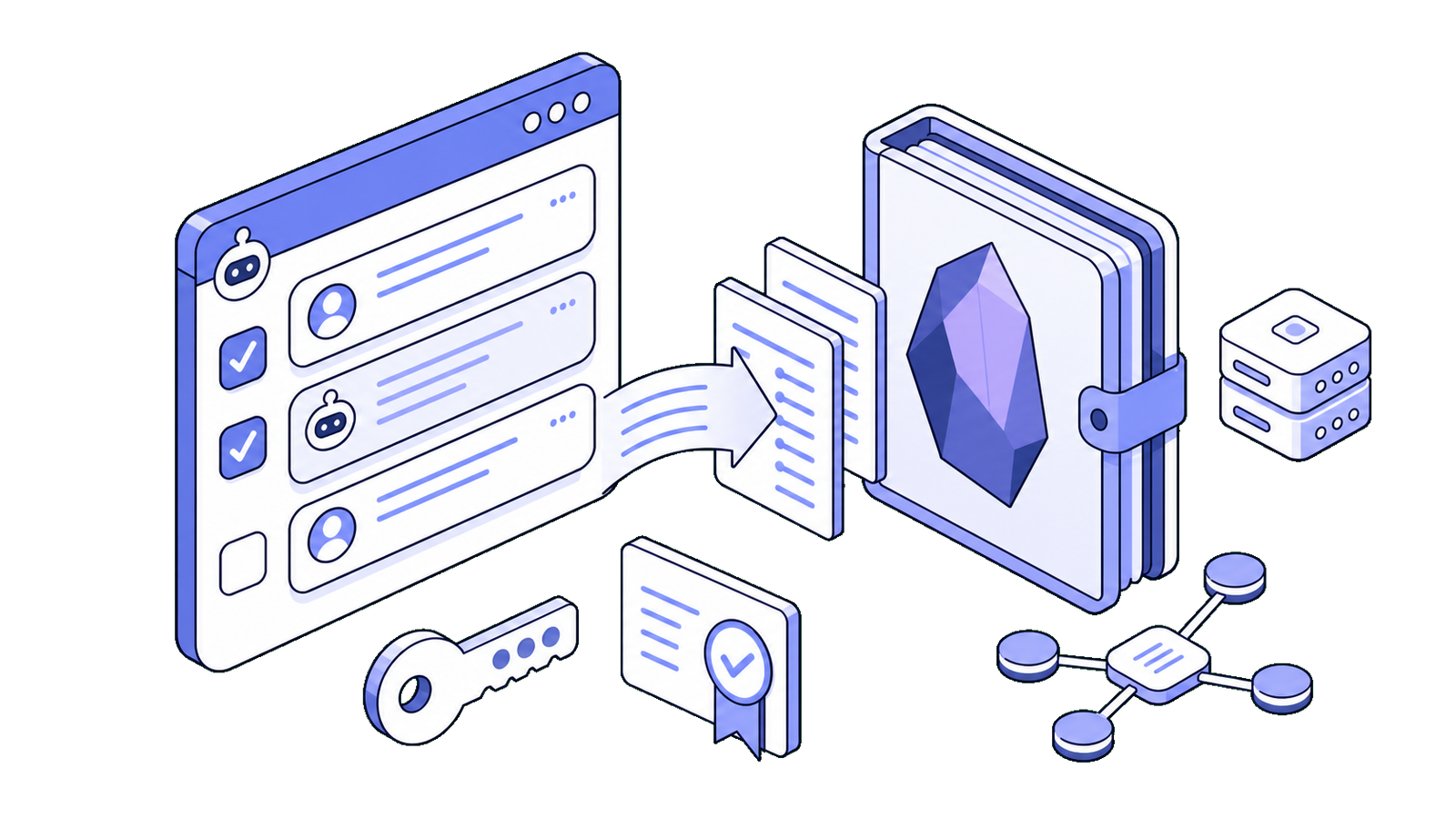
AI chats are useful in the moment, but the best answers often disappear into chat history.
If you use Obsidian for research, writing, studying, or project notes, those useful AI conversations should become Markdown notes in your vault. SurfMind helps you do that without copying and pasting: chat while you browse, select the messages worth keeping, and export them directly to Obsidian.
This guide shows how to connect SurfMind to Obsidian, export selected AI chat messages, and organize the result so it becomes part of your note system instead of another loose transcript.
Why export AI chats to Obsidian?
Obsidian is built around local Markdown files, internal links, backlinks, tags, and long-term ownership of your notes. That makes it a good home for AI-assisted thinking.
Exporting AI chats to Obsidian is useful when you want to save:
- Research summaries
- Study explanations
- Project decisions
- Writing outlines
- Technical notes
- Reusable prompts
- Action plans
The goal is not to archive every chat. It is to preserve the parts of a conversation that can help you think, write, study, or decide later.
Because Obsidian notes are Markdown files, exported chats also stay portable. If you want a quick syntax refresher, the Markdown Guide is a helpful reference.
Why selected-message export matters
Full AI chat transcripts are usually noisy. They include repeated prompts, experiments, clarifications, and half-useful drafts.
SurfMind lets you select only the messages you want to export. For example, you can keep the original question, the best final answer, a checklist, a summary, or a decision note while leaving the rest behind.
That keeps your Obsidian vault cleaner. You get the useful context without filling your notes with every step of the conversation.
How to connect SurfMind to Obsidian
SurfMind connects to Obsidian through the Obsidian Local REST API community plugin. The plugin exposes a local API on your computer, so SurfMind can send selected chat messages into your vault.
1. Install the Local REST API plugin
Open Obsidian and go to Settings -> Community plugins.
If community plugins are not enabled yet, turn them on first. Obsidian's guide to community plugins explains how plugin installation works.
Search for Local REST API, install it, and enable it.
2. Download the certificate
Open the Local REST API plugin settings and download the certificate.
The plugin uses HTTPS on your local machine with a self-signed certificate. Your browser needs to trust that local API before SurfMind can connect reliably.
3. Trust the local API in your browser
Before connecting SurfMind, do this once in your browser:
- Open a new tab.
- Go to
https://127.0.0.1:27124/. - If you see a Your connection is not private warning, click Advanced.
- Click Proceed to 127.0.0.1 (unsafe).
- You should see a small JSON response showing the API status.
- Close the tab.
This URL points to your own computer, not a public website. The warning appears because the Local REST API uses a self-signed certificate.
4. Copy the API URL and key
In the Local REST API plugin settings, copy:
- The API URL, usually
https://127.0.0.1:27124/ - The API key
Keep the API key private. It gives access to your local Obsidian vault through the plugin while Obsidian is running.
5. Paste them into SurfMind
Open SurfMind's Obsidian export setup, then paste the API URL and API key.
Make sure Obsidian is open when exporting. The Local REST API runs through the Obsidian app on your computer.
Step-by-step: export AI chats to Obsidian
Once the connection is ready, the export flow is simple.
1. Start with a useful AI chat
Use SurfMind while browsing. You might summarize an article, explain a technical page, compare tools, extract decisions, or turn research into an outline.
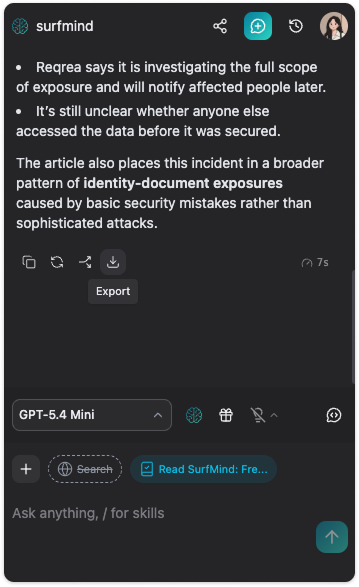
2. Select the messages worth keeping
Open the export flow and choose the specific messages you want to include.
For a research chat, that might be the original question, the main summary, the limitations, and the final takeaways. You can skip the parts that were only useful during the conversation.
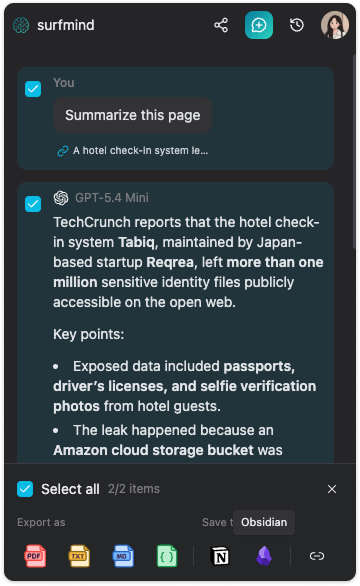
3. Choose Obsidian
Choose Obsidian from the export destinations.
If the connection fails, check that Obsidian is open, the Local REST API plugin is enabled, and your browser has already trusted https://127.0.0.1:27124/.
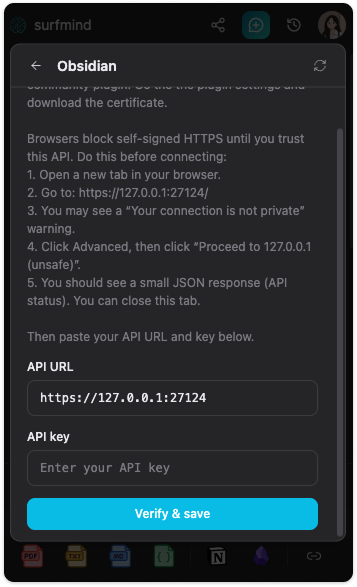
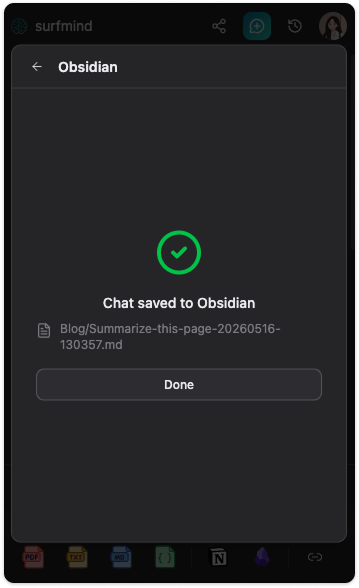
4. Save the note to your vault
Choose where the note should go in Obsidian.
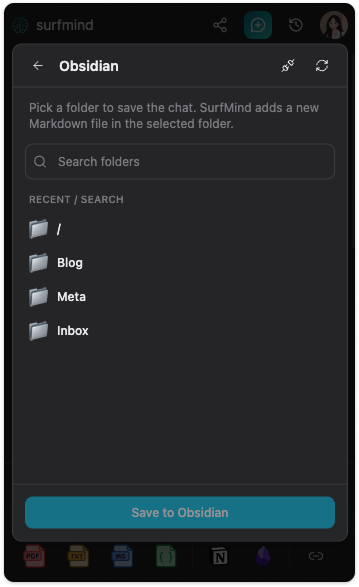
A simple approach is to send new exports to an AI Inbox folder first. Later, you can review, link, and move them into the right project or topic folder.
Organize exported AI notes
You do not need a complicated system. Start with a few practical folders:
| Folder | Use case |
|---|---|
AI Inbox |
New exports waiting to be reviewed |
Research |
Summaries, sources, and comparisons |
Projects |
Plans, decisions, and action items |
Writing |
Outlines, drafts, titles, and examples |
Learning |
Explanations, study notes, and questions |
Prompts |
Reusable prompts and workflows |
If you use metadata, add a small properties block at the top of repeated exports:
---
source: SurfMind
type: ai-chat-export
status: raw
topic: research
---
Obsidian's guide to properties is useful if you want to structure notes by status, project, source, or topic.
Use Graph View to connect ideas
The real value of exporting to Obsidian comes after the note lands in your vault.
Add internal links to related notes while the context is still fresh. Link the exported chat to the source note, project page, concept note, or decision record it supports.
Obsidian's Graph View can then visualize relationships between notes. This is helpful for AI chat exports because one conversation often touches several connected things: a source article, a research question, a project, and a next action.
Over time, Graph View can show which AI-assisted notes are connected to important work and which ones are sitting alone. That makes review easier and helps you spot useful relationships across your vault.
Example workflows
Research: Ask SurfMind to summarize an article, compare claims, or extract risks. Export the best answer to Research, then link it to the source note and related topic notes.
Writing: Use SurfMind to brainstorm angles, titles, or outlines. Export the final outline and the strongest examples to Writing, then continue editing in Obsidian.
Study: Ask SurfMind to explain difficult sections or create review questions. Export the clearest explanation to Learning, then link it to the related concept.
Technical notes: When reading documentation, ask SurfMind to explain examples or summarize implementation steps. Export the useful answer and link it to your project notes.
This is different from using Obsidian Web Clipper. Web clipping saves source pages. SurfMind export saves the selected AI conversation that happened around your browsing, research, or planning.
Tips for cleaner exports
Ask for a final summary before exporting. At the end of a long chat, ask the AI to summarize the key ideas, decisions, and next steps.
Keep the prompt when context matters. A good answer can be confusing later if you do not remember the original question.
Link the note immediately. Add at least one internal link after export so the note does not become isolated.
Use an inbox. Export quickly to AI Inbox, then process the note later.
Do not export everything. The point is to preserve useful knowledge, not to collect more text.
Obsidian or Notion?
Obsidian is best when you want local Markdown files, internal links, long-term ownership, and a personal knowledge graph.
Notion is better when you want databases, shared workspaces, dashboards, and collaborative project systems. If that fits your workflow, read our guide on how to export AI chats to Notion.
SurfMind supports both. Use Obsidian when the conversation belongs in your personal knowledge vault, and use Notion when it belongs in a shared workspace or database.
FAQ
Can I export only part of an AI chat to Obsidian?
Yes. SurfMind lets you select the messages you want to export, so you can save only the useful prompts, responses, summaries, checklists, or action items.
Does SurfMind export AI chats as Markdown?
Yes. Obsidian is built around Markdown files, and SurfMind can save selected AI chat messages into your vault as Markdown notes.
Do I need the Obsidian Local REST API plugin?
Yes. To export directly from SurfMind into Obsidian, install and enable the Local REST API community plugin, then paste the local API URL and API key into SurfMind.
Why does the browser show a warning for 127.0.0.1?
The Local REST API plugin uses a self-signed HTTPS certificate. Browsers warn about that until you trust the local API. After you proceed to https://127.0.0.1:27124/ and see the JSON status response, SurfMind can connect.
Does Obsidian need to be open?
Yes. Obsidian needs to be open while SurfMind exports selected chat messages to your vault.
Ready to save your best AI conversations in Obsidian?
Use SurfMind to export selected AI chat messages to Obsidian and keep useful AI insights inside your Markdown knowledge base.
Related posts
View all
How to Export AI Chats to Notion
Learn how to export selected AI chat messages to Notion with SurfMind and turn useful conversations into organized knowledge.
What Is an AI Decision Model? How Jev Makes Browser Automation 50x Cheaper
An AI decision model answers instead of writing text. Learn how System 1 vs System 2 thinking and models like Jev cut browser automation costs by up to 50x.
Ollama vs LM Studio: Which Local AI Tool Is Right for You?
A practical, no-hype comparison of Ollama and LM Studio for running AI models locally in 2026, plus how to use either one to chat with any web page.