
 Add to Chrome
How to Export AI Chats to Notion
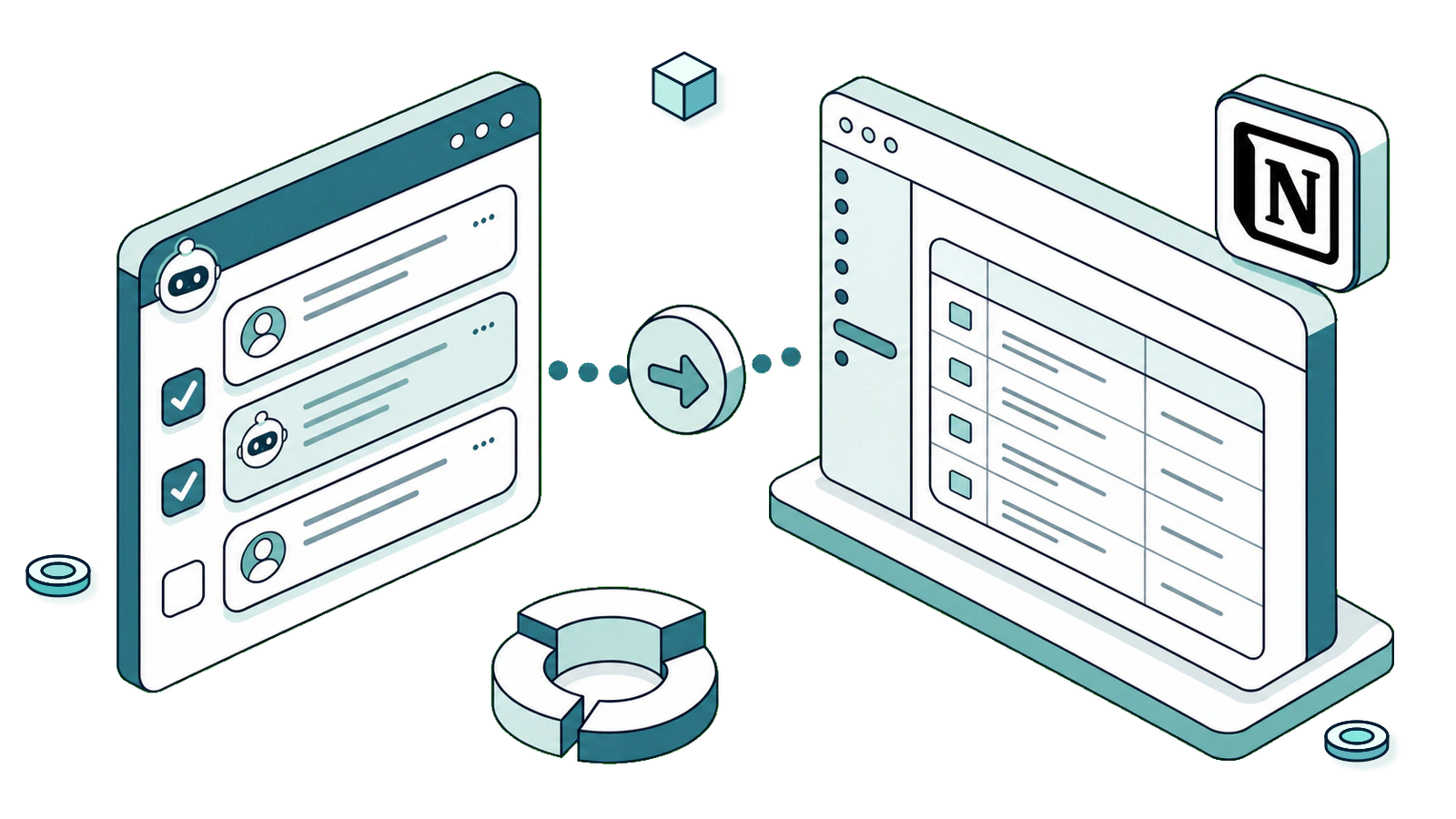
AI chats are useful in the moment, but the best answers are easy to lose.
If you use Notion for projects, research, study notes, content planning, or team docs, your useful AI conversations should live where your work already happens. SurfMind lets you chat while browsing, select the messages worth keeping, and export them directly to Notion without copy-paste.
This guide shows how to export AI chats to Notion, choose the right destination, and keep your Notion workspace clean.
Why export AI chats to Notion?
Notion is useful because it can turn notes into structured work. A single AI answer can become a research entry, a content brief, a project decision, a study note, or a task list.
Exporting AI chats to Notion is especially useful for:
- Research summaries
- Product ideas
- Meeting prep
- Study explanations
- Content outlines
- Strategy drafts
- Decision notes
- Reusable prompts
If you already organize work with Notion databases, exporting AI chats there gives each conversation useful context: project, status, tags, owner, date, or next action.
Why selected-message export matters
Exporting every message from an AI chat usually creates clutter. A normal conversation includes repeated questions, rough drafts, clarifications, and ideas you no longer need.
SurfMind lets you export only the selected messages that matter. You can keep the original prompt, the strongest final answer, a summary, a checklist, or a decision note while skipping the rest.
That makes the exported Notion page easier to scan and easier to turn into real work.
Step-by-step: export AI chats to Notion
1. Start with a useful AI chat
Use SurfMind while browsing. You might summarize a long article, compare options, explain a web page, draft a plan, or turn research into action items.
When the conversation produces something worth saving, open the export flow.
2. Select the messages to keep
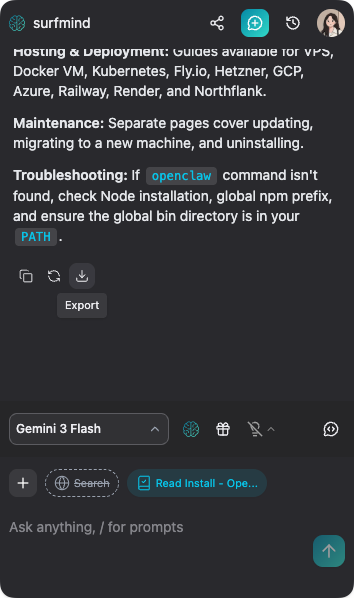
Choose the specific messages you want to include in the export.
For example, if you used AI to research a product idea, you might export the original question, competitor comparison, positioning summary, launch checklist, and final action plan. You do not need every small clarification from the middle of the chat.
3. Choose Notion
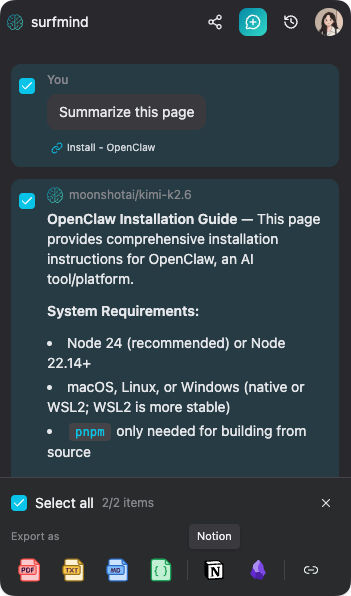
Select Notion as the export destination.
If this is your first time using the Notion integration, SurfMind will ask you to connect your workspace. Notion controls which pages and databases integrations can access, so make sure the destination page or database allows the SurfMind connection.
Notion's guide to adding and managing integrations is useful if you want to understand how page access works.
4. Pick a page or database
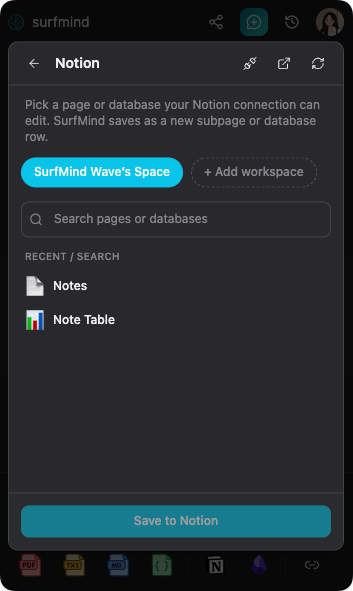
Search your Notion workspace from the export picker, then choose a page or database that SurfMind can edit.
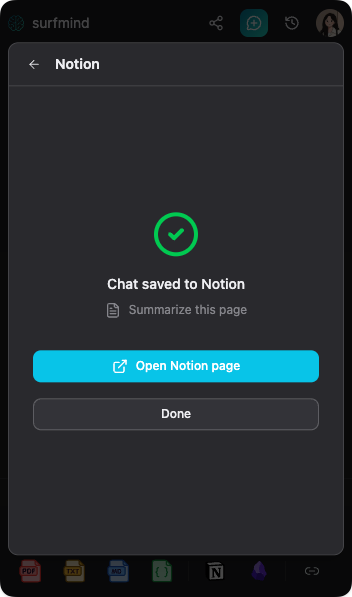
SurfMind can save the selected AI chat messages as a new subpage or a new database row, depending on the destination you choose.
5. Review the exported note
After export, open the new Notion page and add the context that makes it useful later: tags, project, status, owner, or next action.
This is different from saving a source page with Notion Web Clipper. Web clipping saves the page you are reading. SurfMind export saves the selected AI conversation that happened around your browsing, research, or planning.
Best Notion setup for AI chat exports
If you export AI chats often, create a simple Notion database for them. A lightweight setup is enough:
| Property | Example |
|---|---|
| Title | Pricing page analysis |
| Project | Website redesign |
| Type | Research, Writing, Planning, Learning |
| Status | Raw, Reviewed, Summarized, Actioned |
| Tags | SEO, Product, Competitors |
| Source | SurfMind |
| Date | Export date |
The most useful property is usually Status. Exported AI chats do not need to become polished notes immediately. Mark them as Raw, review them later, then update the status when they become a task, summary, draft, or decision.
For repeated workflows, a database is cleaner than a pile of loose pages. You can filter by project, group by type, and build views for research, content planning, study notes, or project decisions.
Example workflows
Research: Ask SurfMind to summarize a report, compare claims, or identify risks. Export the strongest answer to a Notion research database and tag it by project or topic.
Content creation: Use AI to brainstorm angles, titles, outlines, or first drafts. Export only the final outline, best headline options, and reusable notes to your content calendar. The Notion template marketplace can help if you want a starting point for an editorial workflow.
Study: Ask SurfMind to explain difficult sections, make practice questions, or summarize key ideas. Export the clearest explanation to a learning dashboard organized by course, topic, or exam.
Project planning: Use AI to break a goal into milestones, risks, dependencies, and next actions. Export the final plan to a project page, then turn action items into tasks.
Tips for cleaner exports
Ask for a final summary before exporting. At the end of a long chat, ask the AI to summarize the key takeaways, decisions, and next steps.
Keep the prompt when context matters. A strong answer is easier to understand later when the original question is included.
Use databases for repeatable work. Research, content, study, and planning chats are easier to manage when they have properties and views.
Review exports regularly. Scan recent AI exports and decide what should become a task, note, draft, archive, or deletion.
Use imports for existing files. If you are moving documents, Markdown files, PDFs, or CSVs into Notion, use Notion's official import guide. SurfMind export is for saving selected AI chat messages from your browser workflow.
Notion or Obsidian?
Notion is best when you want databases, shared workspaces, dashboards, content calendars, task views, and collaborative project systems.
Obsidian is better when you want local Markdown files, internal links, long-term ownership, and a personal knowledge graph. If that fits your workflow, read our guide on how to export AI chats to Obsidian.
SurfMind supports both. Use Notion when the conversation belongs in a structured workspace or database, and use Obsidian when it belongs in a personal Markdown vault.
FAQ
Can I export only part of an AI chat to Notion?
Yes. SurfMind lets you select the messages you want to export, so you can save only the useful prompts, responses, summaries, checklists, or action items.
Can SurfMind export AI chats to a Notion database?
Yes. SurfMind can save selected chat messages to a Notion page or database that your Notion connection can edit.
What formats does SurfMind support besides Notion?
SurfMind also supports exporting chats to formats such as PDF, TXT, JSON, and Markdown, which is useful when you need a file instead of a Notion page.
Why not just copy and paste AI chats into Notion?
Copy-paste works for occasional notes, but it is manual and inconsistent. Exporting selected messages gives you a cleaner, repeatable workflow for saving AI conversations.
Ready to save your best AI conversations?
Use SurfMind to export selected AI chat messages directly to Notion and keep your knowledge base clean.
Related posts
View all
How to Export AI Chats to Obsidian
Learn how to export selected AI chat messages to Obsidian with SurfMind and save useful conversations as organized Markdown notes in your vault.
Top 5 AI Chrome Extensions for Study in 2026
The 5 best AI Chrome extensions for students in 2026, from multi-model BYOK sidebars to research assistants and lecture transcribers. Study smarter, not harder.
How I Increased My Productivity with AI in the Browser
Discover how an AI extension for Chrome helps me summarize texts, compare information between tabs, and work faster without leaving the browser.