
 Add to Chrome
Ollama vs LM Studio: Which Local AI Tool Is Right for You?
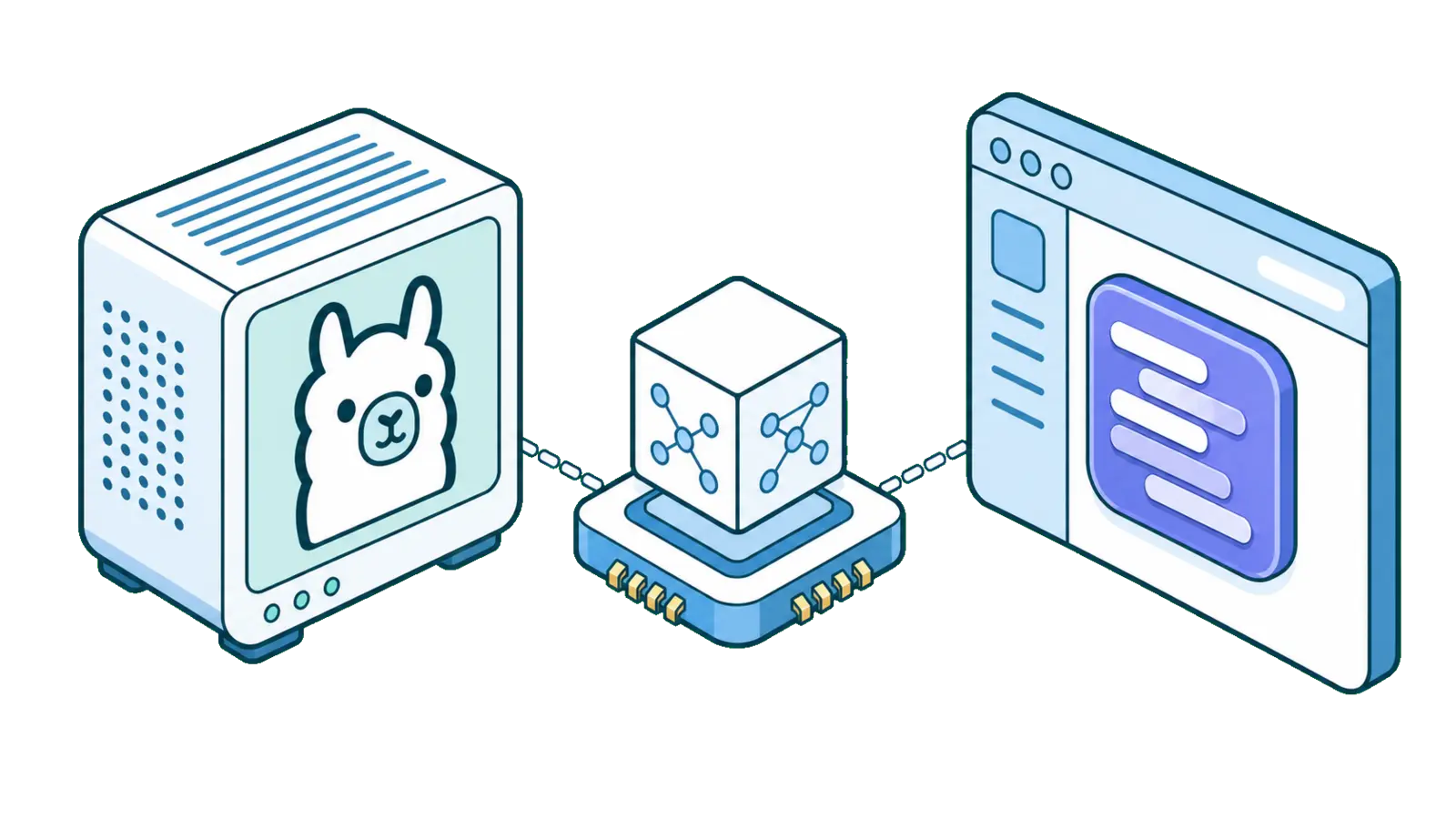
If you've decided to run AI models on your own machine, you've almost certainly run into the same two names: Ollama and LM Studio. They're two of the most prominent ways to run local large language models in 2026, and most guides will tell you one is "better." That's the wrong framing.
They're built for different people. Pick based on how you actually work, not on a benchmark screenshot. This post breaks down the real differences, who each one is for, and how to connect whichever you choose to your browser so you can chat with any web page using your local model.
No sponsorship, no affiliate angle. We just want you running local AI, and we work with both.
The one-sentence version
Ollama is automation-first; LM Studio is exploration-first.
Ollama centers its CLI and local API, although it now also has chat apps for macOS and Windows.
LM Studio centers its desktop interface, although its lms CLI and llmster daemon now support serious headless use.
If you live in a terminal and want something scriptable that other tools can talk to, Ollama fits your hands. If you want to click a button, browse models visually, and never touch a command line, LM Studio is the gentler door in.
Both are free for local inference and run on macOS, Windows, and Linux, with an important exception: current LM Studio releases do not support Intel Macs. Both support popular open-weight families such as Llama, Mistral, Qwen, DeepSeek, and Gemma, but their catalogs, formats, quantizations, prompt templates, and runtime defaults are not identical. Local chats stay on your machine; optional cloud models, web search, and remote tools send the relevant data off-device. So you're not choosing between "good" and "bad." You're choosing a workflow.
Ollama: the developer's default
Ollama runs a local service and exposes both a CLI and an API. You can pull and run a model with two commands:
ollama pull llama3.2
ollama run llama3.2
What makes it the default for developers isn't the chat, it's everything around it:
- It is easy to integrate. Ollama serves its local API on port
11434, so scripts, editors, and browser extensions can use it without opening a chat window. The service can stay running, but models unload from memory after five minutes by default, so the next request can still have a model-loading delay. - It's scriptable. Repeatable installs, Dockerfiles, CI pipelines, and service deployments fit its command-first design. Its official Docker image supports CPU, NVIDIA, AMD ROCm, and Vulkan configurations, although Docker Desktop on macOS cannot pass the Apple GPU through to the container.
- It has cloud models too. Ollama can send requests to optional hosted models through the same interface, so you can use local inference for sensitive work and rent more compute when needed. Cloud model names and availability change, so check the current Ollama cloud catalog rather than relying on an old model tag.
The trade-off is that Ollama's model-management and integration workflow is still command-first. Its macOS and Windows apps now provide chat, downloads, file attachments, and a context-length setting, but LM Studio remains much stronger for visual model discovery and detailed tuning.
Choose Ollama if you write code, automate things, want other tools to talk to your model, or just prefer the keyboard over the mouse.
LM Studio: the visual, approachable one
LM Studio is a polished desktop application. You download it, open it, and you're looking at a searchable catalog of models with a real chat window. No terminal required.
Where it shines:
- Model discovery. LM Studio searches supported models from Hugging Face and its curated catalog, so you can compare quantizations and download with a click. For exploring "what should I even run?", it is more informative than a terminal-only catalog.
- It's genuinely friendly. Sliders expose context length, GPU offload, and generation parameters, while a complete chat UI works out of the box. If you've never opened a terminal, you can still be running a capable model quickly.
- Hardware tuning. LM Studio exposes GPU offload, per-GPU selection, context length, Flash Attention, and other loading controls. It can also estimate RAM and VRAM use before loading.
- MCP tools. LM Studio can attach local or remote MCP servers for capabilities such as web search and page reading. The model can remain local, but networked tools are not an offline workflow.
- It grew up for developers too. The GUI is no longer the only door.
LM Studio ships the
lmsCLI, andllmsteris the recommended headless daemon for Linux boxes, GPU rigs, and other service deployments. Its official Docker image remains a CPU-only technical preview.
The trade-off is that LM Studio is proprietary and still desktop-first, while its Docker packaging is less mature.
Its native headless support is no longer experimental, though, and it can run a configurable local server that defaults to port 1234.
Ollama remains the simpler default for infrastructure; LM Studio is the stronger workbench for choosing and tuning models.
Choose LM Studio if you want a GUI, you're still figuring out which models you like, or you just want the least intimidating way to start.
Side by side
| Ollama | LM Studio | |
|---|---|---|
| Interface | Desktop app + CLI + API | Desktop app + lms CLI + API |
| Best for | Building, automating, integrating | Exploring, chatting, tuning |
| Model discovery | ollama pull <name> |
Visual Hugging Face browser |
| Local server | Port 11434; app/service starts at login by default |
Configurable; port 1234 by default |
| Headless operation | Native service and CLI | Native llmster daemon |
| Docker | Official CPU and GPU configurations | CPU-only technical preview |
| Cloud models | Optional, metered | Optional, pay as you go |
| Tools / web search | Via clients and integrations | MCP servers and built-in options |
| Model formats | Ollama library plus supported GGUF and Safetensors imports | Supported GGUF; MLX on Apple Silicon |
| Learning curve | Steeper (terminal) | Gentle (clicks) |
| Local cost | Free | Free for personal and internal business use |
| Source license | Ollama code is MIT licensed; model licenses vary | Desktop app is proprietary; lms and MLX engine are MIT licensed |
Performance: what your OS, RAM, and GPU change
There is no honest universal answer to "Which one is faster?"
When both apps run the same GGUF file through a similar llama.cpp backend with the same context and GPU offload, the hardware and settings usually matter more than the launcher.
Runtime versions can still differ, so benchmark your exact model instead of transferring a result from a different quantization or computer.
Start with memory, not parameter count
The model weights, context or KV cache, runtime overhead, vision inputs, and concurrent requests all consume memory.
A model file that barely fits on disk can still fail to load, and increasing context length can add several gigabytes.
Ollama explicitly warns that larger contexts require more memory, while LM Studio can run lms load --estimate-only <model> before loading.
These rough Q4 model-file sizes are useful for planning, not guarantees:
| Model class | Typical Q4 weight size | Sensible total memory target |
|---|---|---|
| 1B-4B | 1-3GB | 8GB for small contexts |
| 7B-8B | 4-6GB | 16GB |
| 12B-14B | 8-10GB | 16-24GB |
| 20B-32B | 12-22GB | 32GB or more |
| 70B | 40-50GB | 64GB or more |
Leave memory for the operating system, browser, and context cache. Mixture-of-experts models can also break these rules because total parameters, active parameters, and stored weights describe different things.
macOS: Apple Silicon and Intel Macs
Apple Silicon is often the easiest laptop setup because its GPU can access the same unified-memory pool as the CPU. Both tools accelerate inference through Metal; LM Studio can also run supported MLX models. The amount of unified memory decides what fits, while memory bandwidth means a Pro, Max, or Ultra chip can generate faster than a base chip with a similar memory capacity. Chip generation, model architecture, quantization, and context still matter, so "M-series" alone is not a performance number.
| Mac configuration | Practical starting point |
|---|---|
| 8GB Apple Silicon | 1B-4B Q4 models and modest context; close other memory-heavy apps |
| 16GB Apple Silicon | 7B-8B Q4 comfortably; some 12B-14B models with restrained context |
| 24GB Apple Silicon | 12B-14B Q4 comfortably; some larger models if the estimate leaves headroom |
| 32GB-36GB Apple Silicon | Many 20B-32B quantized models |
| 64GB+ Apple Silicon | Quantized 70B-class models become realistic, with speed varying greatly by chip tier |
Ollama supports macOS 14+ on Apple M-series chips with CPU and GPU acceleration, and on Intel Macs with CPU inference only. LM Studio requires macOS 14+ and Apple Silicon; Intel Macs are not supported. On an Intel Mac, Ollama is therefore the choice between these two, but CPU-only generation will usually be much slower than Metal acceleration on Apple Silicon.
Windows and Linux: NVIDIA, AMD, Intel, and CPU-only
For a dedicated GPU, the fastest setup is normally the largest model that fits fully in VRAM without spilling layers into system RAM. Partial CPU/GPU offload lets a larger model run, but transferring work across the bus can reduce speed.
On Windows x64, both tools support local CPU and GPU inference, while LM Studio requires AVX2 and recommends at least 16GB RAM plus 4GB dedicated VRAM. LM Studio also documents native Windows ARM support; check Ollama's current platform packages before choosing it for an ARM Windows machine. Linux offers the broadest headless and container choices, with x64 and ARM64 packages for both tools. NVIDIA is generally straightforward on either desktop OS, while supported AMD devices and driver requirements vary more between Windows and Linux.
| Hardware | What to expect |
|---|---|
| NVIDIA GPU | Usually the least complicated accelerated path on Windows or Linux, with CUDA support subject to current driver and GPU requirements. |
| AMD GPU | Selected hardware works through ROCm, with Vulkan covering additional configurations, but the exact GPU and OS support lists must be checked before buying hardware. |
| Intel or other Vulkan GPU | Support is device and driver dependent, so treat it as a configuration to test rather than a universal guarantee. |
| CPU only | Smaller quantized models work, but generation is usually slower and competes for system RAM bandwidth; LM Studio requires AVX2 on x64 Windows and Linux. |
As a rough dedicated-VRAM guide, 4GB-8GB is small-model territory, 12GB-16GB is a good target for 7B-14B quantizations, and 24GB opens many 20B-32B options. Running a 70B quantization fully on a GPU generally needs workstation-class VRAM or multiple GPUs. Always verify the current Ollama GPU matrix and LM Studio system requirements, because AMD and older NVIDIA compatibility depends on drivers and specific device generations.
How to compare Ollama and LM Studio fairly
Use the exact same GGUF file and quantization, prompt, context length, sampling settings, and GPU-offload level.
Warm the model once so model-loading time does not distort generation speed, then repeat the prompt at least three times.
Compare both prompt-processing speed and generated tokens per second, and watch memory use and whether all layers remain on the GPU.
With Ollama, ollama ps reports the CPU/GPU split and active context.
With LM Studio, use the load estimator and developer logs.
If one tool is dramatically slower with matched settings, first check runtime version, GPU backend, Flash Attention, context length, and whether part of the model fell back to the CPU.
The honest truth: you don't have to pick forever
A lot of people run both. Use LM Studio to discover and test a model visually, then reproduce the setup in Ollama when you want its simpler scripting and deployment story. They coexist on the same machine and use different default ports, although downloaded model files are not shared automatically.
And there's a more important point this comparison usually misses: the tool you run the model with isn't the tool you'll spend your day in. Ollama and LM Studio are engines. What you actually want is to use that model on real work, like the page open in front of you right now.
Either way, connect it to your browser
A local model in a terminal or a desktop chat window is useful. A local model that can read the web page you're on, the research paper, the contract, the documentation, the competitor's pricing, and answer questions about it without you copy-pasting anything, is a different level of useful.
That's what SurfMind does. It's a browser extension that reads the page you're on and lets you have a real conversation about it, powered by whichever model you choose. It treats local models as first-class, so it works with both Ollama and LM Studio. Here's how to wire up each.
If you chose Ollama
Allow browser-extension origins before starting Ollama:
# Mac/Linux (interactive server)
OLLAMA_ORIGINS="chrome-extension://*,moz-extension://*,safari-web-extension://*" ollama serve

# Windows (PowerShell)
$env:OLLAMA_ORIGINS="chrome-extension://*,moz-extension://*,safari-web-extension://*"; ollama serve
If the Ollama desktop app or Linux service is already running, configure OLLAMA_ORIGINS for that service and restart it instead of launching a second server.
Using the specific SurfMind extension origin is safer than allowing all extensions when you know its ID.
This setting changes browser-origin access only; OLLAMA_HOST separately controls whether the server listens beyond localhost.
In SurfMind, open the model picker → Custom tab → Add Custom Models, then pick the Ollama preset.
It fills everything in automatically (http://localhost:11434/api/chat).
Save, and your installed models appear, ready to use.
The full walkthrough with screenshots is in our Ollama guide.
If you chose LM Studio
LM Studio serves an OpenAI-compatible API.
Open LM Studio, go to the Developer tab, enable CORS for browser access, load a model, and start the server.
Its default address is http://localhost:1234, but the port is configurable.
In SurfMind, open the model picker → Custom tab → Add Custom Models, and use the generic OpenAI-compatible preset:
- API URL:
http://localhost:1234/v1/chat/completions - Models URL:
http://localhost:1234/v1/models - API Key Header: None when LM Studio authentication is disabled
- API Key: Leave empty when LM Studio authentication is disabled
LM Studio does not require authentication by default.
If you enable LM Studio API authentication, select Authorization and enter a generated token; SurfMind adds the Bearer scheme.
Save, and SurfMind will list loaded models, or all downloaded models when LM Studio's just-in-time loading is enabled.
Pick one and start chatting with the page.
So which one?
- You write code or automate things: Ollama.
- You want clicks and fine-grained tuning: LM Studio.
- You have an Intel Mac: Ollama, with CPU-only inference.
- You want to compare and estimate models before loading them into memory: LM Studio.
- You genuinely can't decide: Install LM Studio to explore, and keep Ollama for services and scripts.
Whichever you pick, the real payoff is putting that model to work on the pages you read all day. Install your engine of choice this afternoon, add it to SurfMind, and open the next article you were going to read anyway.
Frequently Asked Questions
Which is better, Ollama or LM Studio?
Neither is objectively better. Ollama is better if you want a scriptable local service that other tools can call. LM Studio is better if you want a friendly desktop app with visual model browsing and detailed loading controls. Many people use LM Studio to discover models and Ollama to serve them.
Does LM Studio have a CLI?
Yes.
LM Studio ships lms, a command-line tool that can download and load models, start and stop the server, and manage a remote LM Studio instance over the network.
Since version 0.4, the standalone llmster daemon has also provided fully headless operation.
Only the Docker image, not headless operation itself, remains a technical preview.
Can I use Ollama and LM Studio at the same time?
Yes.
They install side by side and use different default ports: Ollama uses 11434, while LM Studio uses 1234.
LM Studio's port is configurable, so avoid assigning it to Ollama's port.
Downloaded model files are stored separately, so a model pulled in one is not automatically available in the other.
Is Ollama safe to use?
Ollama's code is open source, and local inference does not send prompts or responses to Ollama.
Optional cloud models and web features do process relevant data off-device.
The local API has no authentication, so keep it bound to localhost unless you add an authenticated proxy and appropriate network controls.
OLLAMA_ORIGINS controls which browser origins may call the API; OLLAMA_HOST controls which network interfaces it binds to.
Is LM Studio free?
LM Studio is free for personal and internal business use, including its local server, but the desktop app is proprietary. Ollama's code is free and MIT licensed. Local inference has no per-token fee, while both products now offer optional paid cloud inference. Individual model weights have their own licenses and usage terms.
Do Ollama and LM Studio use the same models?
They overlap substantially, but not completely. Both run many GGUF models; LM Studio also supports MLX models on Apple Silicon, while Ollama can import supported GGUF and Safetensors models in addition to its own library packages. Even when the base model is the same, different quantizations, prompt templates, context lengths, sampler defaults, and runtime versions can change quality and speed.
Do I need a GPU to run local models?
No, but acceleration matters. CPU-only inference works best with small quantized models and enough system RAM. Apple Silicon uses its integrated GPU through Metal, while supported NVIDIA and AMD GPUs use dedicated acceleration backends on Windows and Linux. Available RAM or VRAM determines what can load; memory bandwidth, GPU offload, context length, and model architecture heavily influence speed. See the performance section above for practical hardware tiers.
Pick your local AI tool. Then point it at the whole web.
Related posts
View all
How to Use Ollama to Chat with Any Web Page
Run AI models locally or in the cloud with Ollama, then use SurfMind to chat with any web page privately, for free.
Private AI in Firefox: Run Local Models with Zero Telemetry
Add a private AI assistant to Firefox that runs on local models, so your page content never leaves your machine. No telemetry, no cloud, no compromise.
The Best Browser Extensions for Local AI Models in 2026 (Ollama, LM Studio & More)
The best browser extensions for running local AI models in 2026, from polished local+cloud sidebars to open-source Ollama tools. Chat with any page, privately.