
 Add to Chrome
Private AI in Firefox: Run Local Models with Zero Telemetry
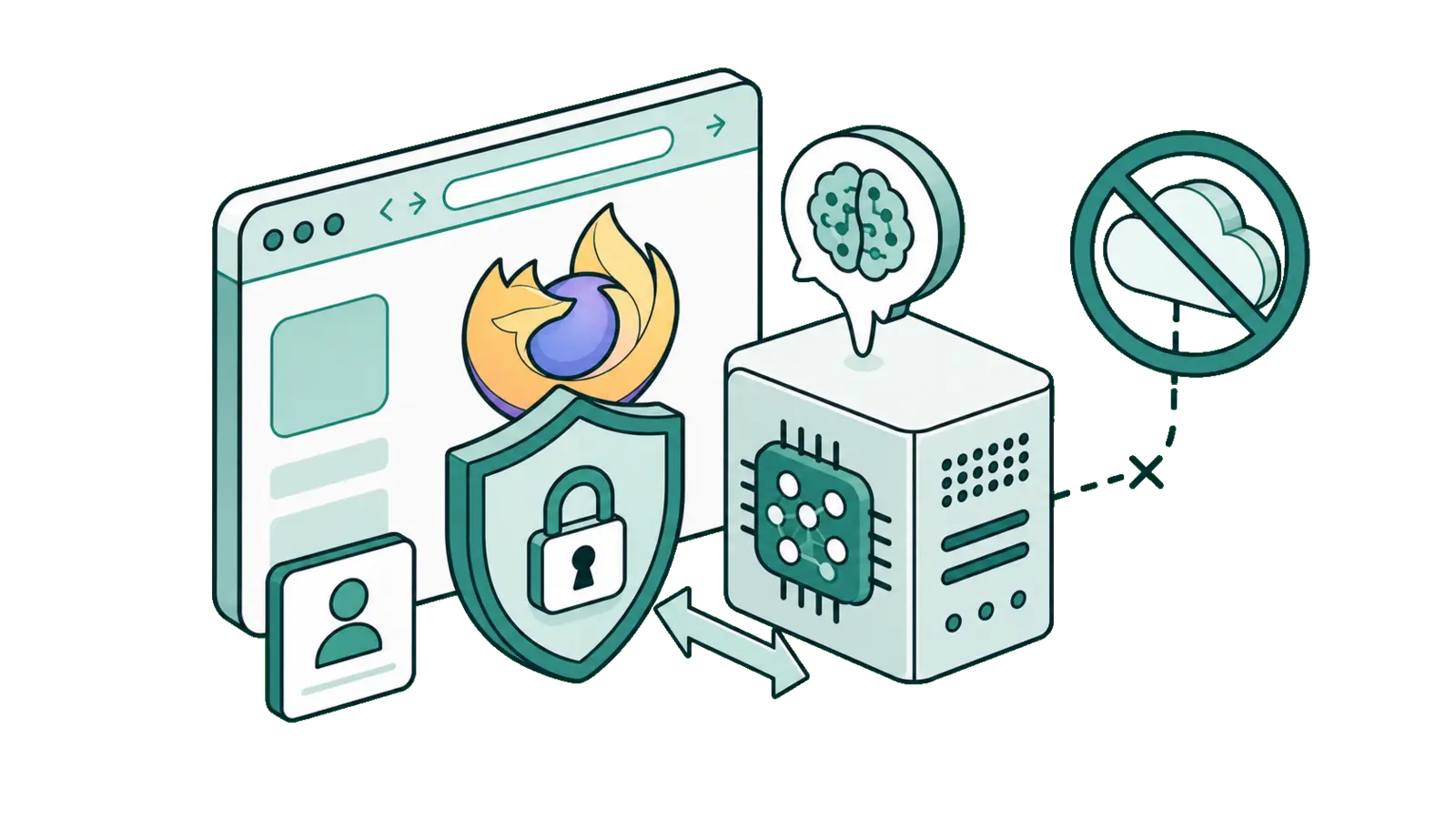
If you use Firefox, there's a good chance you chose it on purpose. Not because it came preinstalled, but because you care about who's watching, and you'd rather own your browser than rent it from an ad company. That instinct has been tested lately.
This post is for that person. We'll talk briefly about why "AI in the browser" became a sore subject for Firefox users, and then get to the practical part: how to add a genuinely private AI assistant to Firefox, one that runs on models on your machine, reads the page you're on, and sends your content exactly nowhere.
As SurfMind is now available for Firefox, here's how to set it up the private way.
Why Firefox users got nervous about AI
Late in 2025, Mozilla's new leadership announced plans to turn Firefox into a "modern AI browser" over the next few years. The community reaction was not warm. People who'd specifically chosen Firefox to avoid surveillance and bloat saw built-in AI features as exactly the thing they'd come to Firefox to escape.
The backlash was loud enough that Mozilla promised an "AI kill switch", a single setting to turn all AI features off and keep them off across updates. Whatever you think of how it was rolled out (critics fairly pointed out that an off-switch quietly makes AI your problem to opt out of, rather than the browser's to justify), the episode revealed something important about who uses Firefox: this is the most privacy-conscious, open-source-minded audience on the web.
And here's the thing those users keep getting told they can't have: AI that's actually private. The mainstream pitch is "send your data to our cloud and trust us." For a Firefox user, that's the whole problem, not the solution.
There's a better answer, and it doesn't require trusting anyone.
The private way to do AI: keep the model local
You don't have to choose between "useful AI" and "my data stays mine." You can run capable AI models directly on your own computer, no account, no cloud, no telemetry, and then use them right inside Firefox.
The setup has two pieces:
- A local model runner like Ollama or LM Studio, which downloads an open-weight model (Llama, Mistral, Qwen, DeepSeek) and runs it on your hardware. Once it's downloaded, it works offline. Nothing you type goes to a server.
- A browser extension that connects Firefox to that local model and feeds it the page you're reading, so you can ask questions about what's on screen without copy-pasting anything into a cloud tool.
That's the whole stack. When it's wired up, you have an AI assistant in Firefox where the page content and your prompts never leave your machine. That's not "we promise not to look." That's there's nothing to look at.
Setting it up in Firefox
Step 1 — Run a model locally
If you don't already have one, start with Ollama. It's free, open source, and two commands:
# Install (Mac/Linux)
curl -fsSL https://ollama.com/install.sh | sh

# Download and run a model
ollama run llama3.2
On Windows, grab the installer from ollama.com. A laptop with 16GB of RAM handles most everyday models comfortably. Our full Ollama walkthrough covers which model to pick and what hardware you need. Prefer a graphical app? LM Studio does the same job with a point-and-click interface.
Step 2 — Let your browser talk to the model
Ollama only allows browser connections when you tell it to. Start it with browser access enabled:
# Mac/Linux
OLLAMA_ORIGINS="*" ollama serve

# Windows (PowerShell)
$env:OLLAMA_ORIGINS="*"; ollama serve
Seeing a "port 11434 already in use" error? The Ollama app is already running in the background. Quit it first (menu bar on Mac, system tray on Windows), then run the command again.
Step 3 — Install SurfMind for Firefox
Get SurfMind from Firefox Add-ons and pin it. SurfMind is a browser assistant built to put local models at the center, which is exactly what this audience has been missing: a polished, consumer-grade tool that doesn't assume you'll hand your data to a cloud.
Step 4 — Connect your local model
Open SurfMind on any page, click the model name to open the picker, and switch to the Custom tab → Add Custom Models. Choose the Ollama preset and it fills everything in automatically:
- API URL:
http://localhost:11434/api/chat - Models URL:
http://localhost:11434/api/tags - API Key: (none needed)
Save. SurfMind connects to your local Ollama and lists the models you've installed. Pick one, and you're done.
Now open any web page, the article, the documentation, the dense PDF, the terms of service you'd never paste into ChatGPT, and just ask. The answer comes from a model running on your own machine.
Why this fits Firefox specifically
- Open weights for an open browser. You're running open-source models in an open-source browser. No black boxes on either end.
- Genuinely zero telemetry on your content. Local models mean your prompts and the page you're reading stay on your device. There's no cloud round-trip to opt out of.
- It works offline. On a plane, on bad hotel wifi, during an outage, your local AI still works.
- You're not locked in. Swap models freely. Run a different one tomorrow. Nobody changes the model or the price under you.
And if you ever do want to reach for a big cloud model on a hard task, SurfMind lets you, on your terms, with your own key (BYOK), switchable per task. The point isn't that cloud AI is evil. The point is that you decide when anything leaves your machine, and the default is that it doesn't.
One honest caveat
Local models are smaller than the giant cloud ones, so for the hardest reasoning tasks you'll notice a gap. For the day-to-day, summarizing, explaining, drafting, Q&A over a page, they're more than good enough, and the quality has climbed fast.
When the work gets more complex, SurfMind makes the handoff simple. Stay local by default for private pages, then switch in the same sidebar to a larger model like Claude, GPT, or Gemini when you need deeper reasoning, stronger writing, or more context. Those bigger models are still your choice, when the task is worth sending out.
The Firefox-native private AI setup
You chose Firefox to keep control. Adding AI doesn't have to give that up. Run a model locally, connect it with SurfMind, and you've got a capable assistant on every page you browse, with your data staying right where it belongs.
Set it up this afternoon. Open SurfMind on the next thing you were going to read anyway, and see how it feels to use AI that has nothing to report.
Private AI, in the browser you already trust.
Related posts
View all
The Best Browser Extensions for Local AI Models in 2026 (Ollama, LM Studio & More)
The best browser extensions for running local AI models in 2026, from polished local+cloud sidebars to open-source Ollama tools. Chat with any page, privately.
How to Use Ollama to Chat with Any Web Page
Run AI models locally or in the cloud with Ollama, then use SurfMind to chat with any web page privately, for free.
Ollama vs LM Studio: Which Local AI Tool Is Right for You?
A practical, no-hype comparison of Ollama and LM Studio for running AI models locally in 2026, plus how to use either one to chat with any web page.