
 Add to Chrome
How to Turn On SurfMind Notifications on Mac and Windows
SurfMind can now send you a desktop notification when a task needs your input or when the AI finishes its answer. To turn it on, open Settings > General > Notifications in the SurfMind extension or in web chat, switch on Action required and Task completed, and click Allow when your browser asks. If notifications still don't show up, the block is usually in one of two places: your browser's notification permission, or your operating system's notification settings (jump to the checklist). This guide covers both, for Chrome, Edge, Firefox, Safari and Brave on macOS and Windows.
What SurfMind notifications do
Agent tasks take a while. You ask SurfMind to compare five product pages or fill in a long form, then you switch to email while it works. Halfway through, the agent stops to ask permission to open a page, and waits. Without a notification, you find out ten minutes later that nothing happened.
Now SurfMind pings you instead:
- Action required: a task needs your input to continue, such as a permission prompt (open a page, control the browser, use a connector tool) or a question the AI asks you.
- Task completed: the AI finished its response.
- Scheduled task completed (extension only): a scheduled task finished a run.
We only notify you when you're not looking. If the chat is open and its window is in focus, you won't get a notification for something already on your screen. Click a notification and SurfMind brings you back to that conversation.
Turn on notifications in the SurfMind extension
- Open SurfMind and go to Settings.
- Under General, scroll to Notifications.
- Switch on Action required, Task completed and, if you use scheduled tasks, Scheduled task completed.
- Your browser asks whether SurfMind may show notifications. Click Allow.
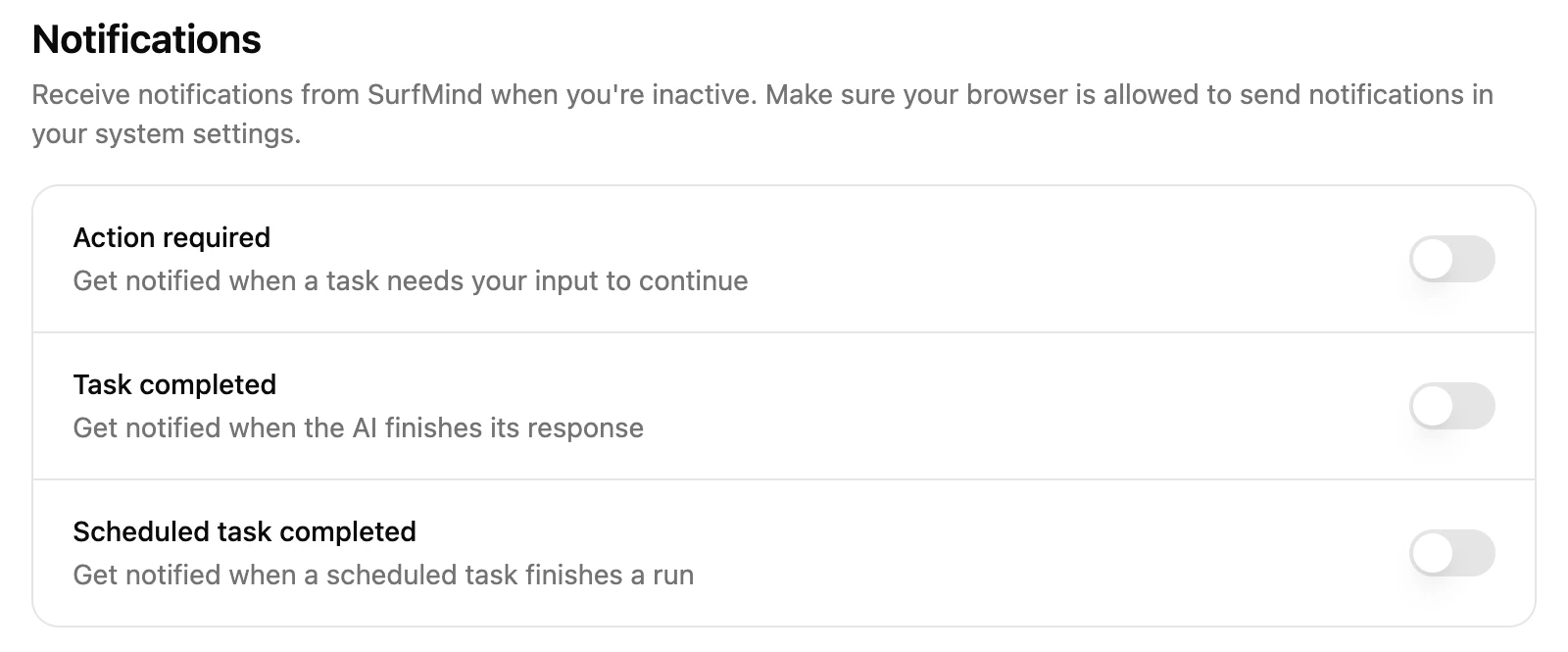
There's a shortcut too. When SurfMind asks for permission or asks you a question, the prompt shows a small Get notified when SurfMind needs you link. Click it to open Settings right at Notifications, then switch on Action required and click Allow.
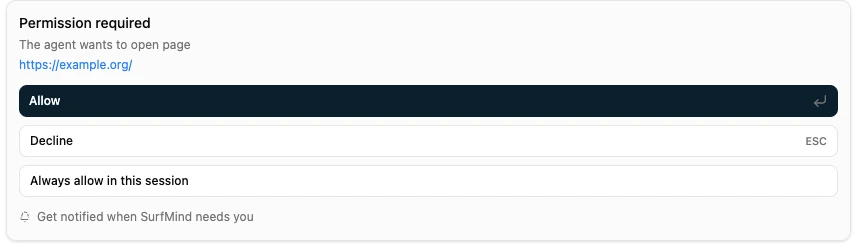
These settings are off until you turn them on, and they're saved per browser. If you use SurfMind in Chrome at work and in Firefox at home, turn them on in each.
In Safari on Mac, notifications come from the SurfMind app that installs the Safari extension. When you switch a toggle on, macOS asks whether SurfMind may send notifications. They then appear under SurfMind in System Settings, not under Safari.
Turn on notifications in SurfMind web chat
- Open chat.surfmind.ai and click Settings in the sidebar.
- Under General, scroll to Notifications.
- Switch on Action required and Task completed.
- Your browser asks whether chat.surfmind.ai may show notifications. Click Allow.
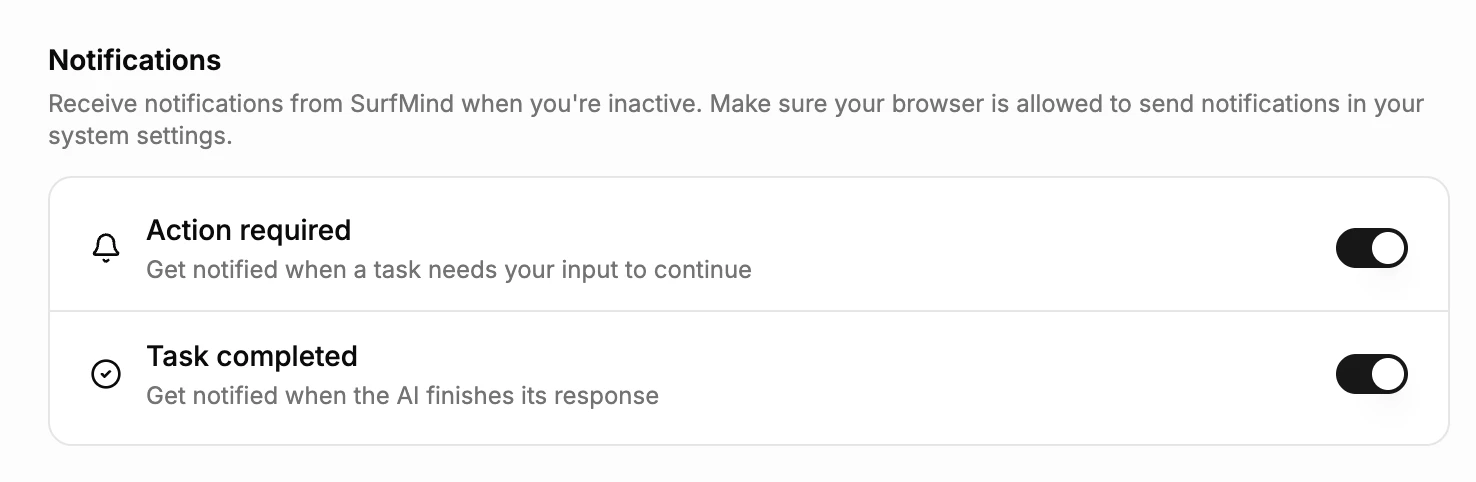
Web chat notifies you when its tab is in the background or its window isn't in focus. Keep the tab open: a closed tab can't notify you. Notifications aren't available in the SurfMind iPhone and iPad apps.
Quick test
- Switch on Task completed in SurfMind.
- Ask something that takes a few seconds, for example "Summarize this page in 10 bullet points".
- Right after sending, switch to another app.
- A SurfMind finished notification should pop up as soon as the answer ends.
If it doesn't show, work through the checklist below.
Browser notifications not working? Start here
In web chat, a toggle that reads Blocked in your browser settings means the browser has blocked notifications for chat.surfmind.ai. Fix it in your browser first (browser steps), then switch the toggle on again.
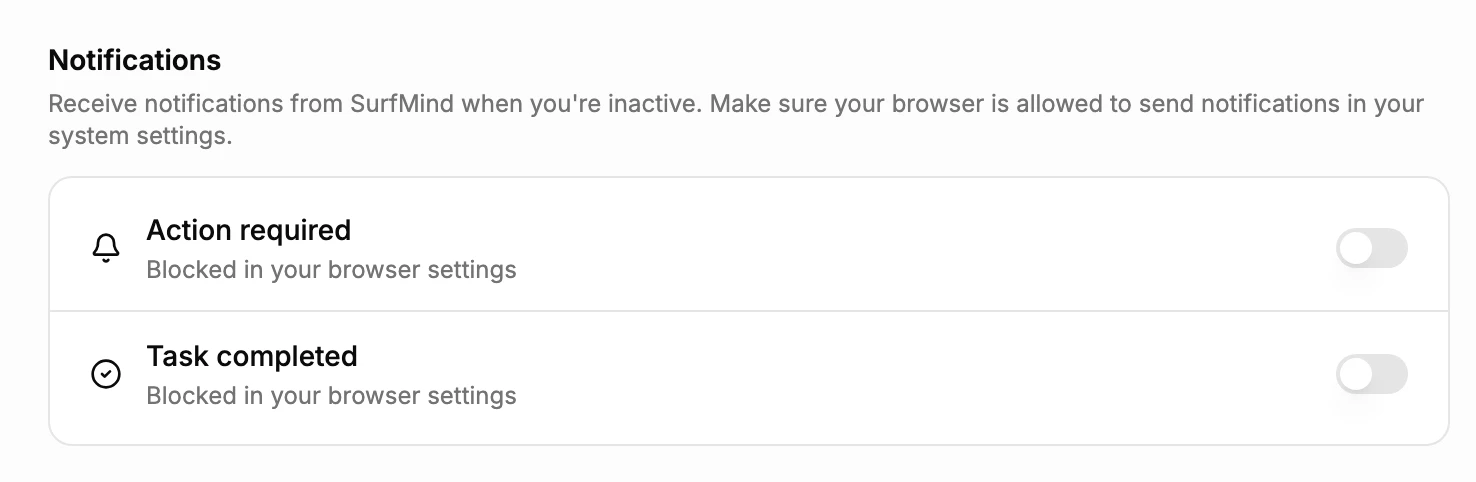
In the extension in Chrome or Edge, the same label means notifications from the SurfMind extension were turned off in the browser itself, not just for one website.
If the toggles are on but nothing pops up, check these in order:
- The browser is allowed to notify (browser steps below, for web chat).
- Your operating system lets the browser notify (macOS or Windows steps below).
- Do Not Disturb or Focus is off. Both silence notifications on macOS and Windows.
- You aren't sharing your screen. By default, macOS hides notifications while you mirror or share your display, for example during a video call.
- You aren't in a private window. Chrome doesn't deliver notifications in Incognito.
If you clicked Deny by mistake in the extension in Chrome, Edge or Firefox, switch the toggle on again to get the prompt back. In Safari, macOS asks only once: the toggle then reads Turned off for SurfMind in System Settings > Notifications, so turn on SurfMind there (macOS steps).
Allow notifications in Chrome, Edge, Firefox, Safari and Brave
These steps are for SurfMind web chat (chat.surfmind.ai). The SurfMind extension asks for its own permission when you switch a toggle on, so for the extension go straight to the operating system steps below.
Chrome
- From the address bar: on chat.surfmind.ai, click the site information icon to the left of the address and switch Notifications on. If you see a crossed out bell (Notifications blocked), click it and allow notifications.
- From settings: go to Settings > Privacy and security > Site Settings > Notifications, or paste
chrome://settings/content/notificationsinto the address bar. If chat.surfmind.ai is under Not allowed to send notifications, remove it, then turn the toggle on again in SurfMind. - Quieter messaging: if Use quieter messaging is selected on that page, Chrome shows a small bell in the address bar instead of asking. Click the bell to allow.
Source: Google Chrome Help.
Microsoft Edge
- From the address bar: on chat.surfmind.ai, click View site information to the left of the address, then under Permissions for this site set Notifications to Allow.
- From settings: go to Settings > Privacy, search, and services > Site permissions > All sites, pick chat.surfmind.ai and set Notifications to Allow.
- Quiet notification requests: Edge can show a bell in the address bar instead of a pop up. Click it to allow.
Source: Microsoft Support.
Firefox
- From the address bar: when Firefox asks, click Allow. To change a decision later, click the padlock to the left of the address, clear the Send Notifications permission with the x, reload the page and switch the toggle on again.
- From settings: go to Settings > Privacy & Security > Permissions > Notifications > Settings…, set chat.surfmind.ai to Allow and click Save Changes. If Block new requests asking to allow notifications is checked there, Firefox never asks; add chat.surfmind.ai manually or uncheck it.
Source: Mozilla Support.
Safari (Mac)
- Go to Safari > Settings > Websites > Notifications and set chat.surfmind.ai to Allow.
- If it's set to Deny, select it and click Remove, then switch the toggle on again in SurfMind.
- Make sure Allow websites to ask for permission to send notifications is checked at the bottom of that page.
Source: Safari User Guide.
Brave
Brave is built on Chromium, so it follows Chrome's steps above: click the site information icon in the address bar and allow Notifications, or open brave://settings/content/notifications.
Allow your browser to notify on macOS
macOS has its own switch for every app, and it applies on top of the browser setting.
- Open System Settings > Notifications.
- Under Application Notifications, select your browser: Google Chrome, Microsoft Edge, Firefox or Brave Browser. For the SurfMind Safari extension, select SurfMind. For web chat in Safari, select the chat.surfmind.ai entry (macOS lists each website you allowed in Safari on its own).
- Turn on Allow notifications.
- Under Alert Style, choose Temporary (disappears on its own) or Persistent (stays until you dismiss it), and make sure Desktop is selected.
Also check:
- Focus: if a Focus such as Do Not Disturb is on (Control Center, top right), notifications from your browser are held back unless you allow the browser in that Focus.
- Screen sharing: in System Settings > Notifications, set Show Notifications when mirroring or sharing the display to Allow Notifications if you want them during calls.
- Chrome and Edge helper entries: Chrome may also be listed as Google Chrome Helper (Alerts), and Edge as Microsoft Edge Helper (Alerts). If you see one, allow notifications there too.
Source: Mac User Guide.
Allow your browser to notify on Windows
Windows 11
- Open Start > Settings > System > Notifications.
- Make sure Notifications is on at the top.
- Under Notifications from apps and other senders, turn on your browser (Google Chrome, Microsoft Edge, Firefox or Brave).
- Select the browser to choose whether banners show and whether notifications play a sound.
Also check Do not disturb on the same page, and Turn on do not disturb automatically, which can silence notifications at set times, while you duplicate your display, or while an app is full screen. A Focus session also turns on Do Not Disturb.
Windows 10
Open Settings > System > Notifications & actions, make sure Get notifications from apps and other senders is on, and turn on your browser under Get notifications from these senders.
Source: Microsoft Support.
Turn notifications on once, and you can let SurfMind run long tasks in the background without checking on it every minute. Get SurfMind for your browser or open web chat to try it.
Related posts
View all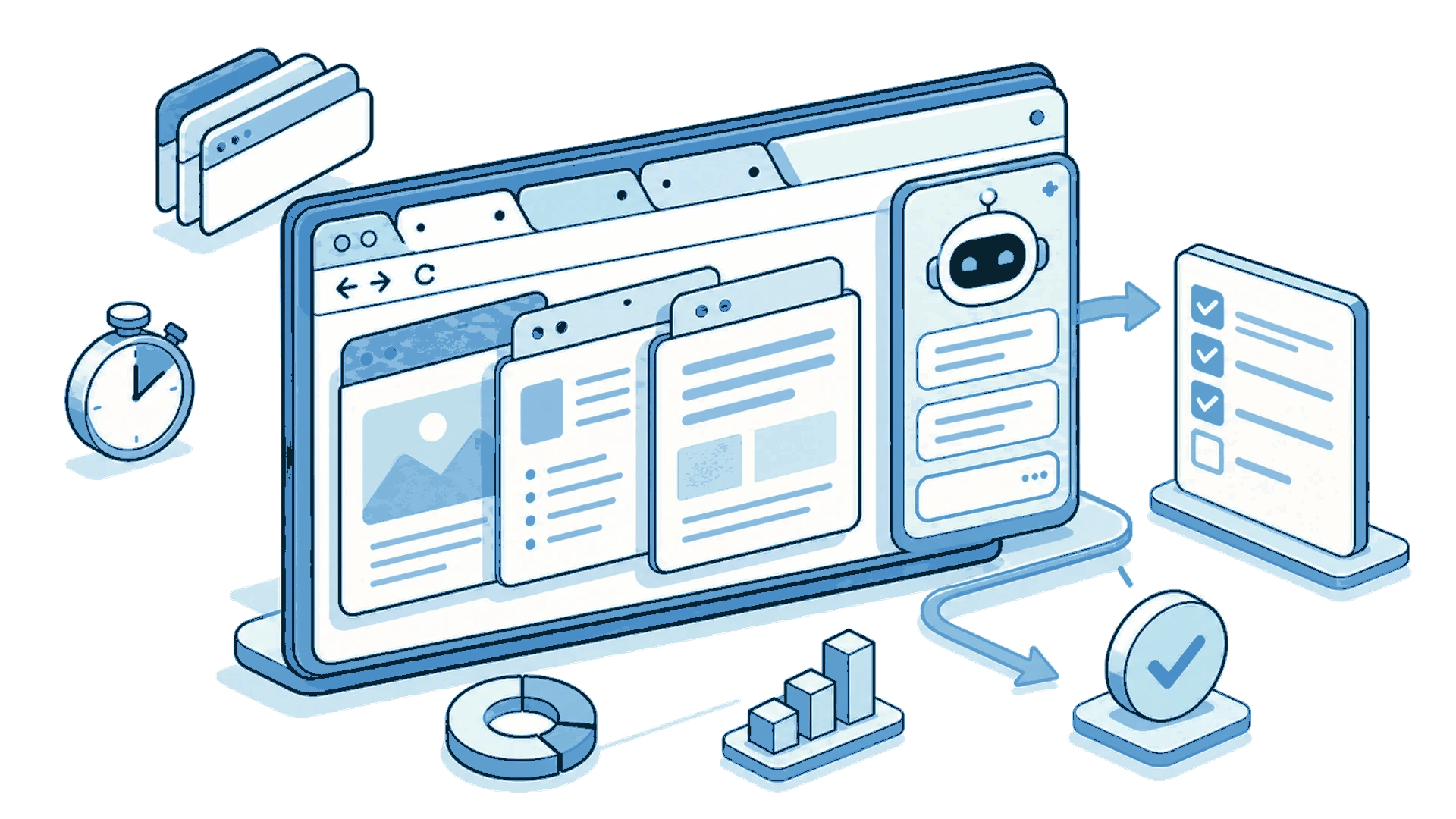
How I Increased My Productivity with AI in the Browser
Discover how an AI extension for Chrome helps me summarize texts, compare information between tabs, and work faster without leaving the browser.
The Best AI Browser Is the One You Already Use
Looking for the best AI browser? Dia, Comet, and the now-defunct ChatGPT Atlas want you to switch. Get tab chat, summaries, and an AI agent in your own browser.
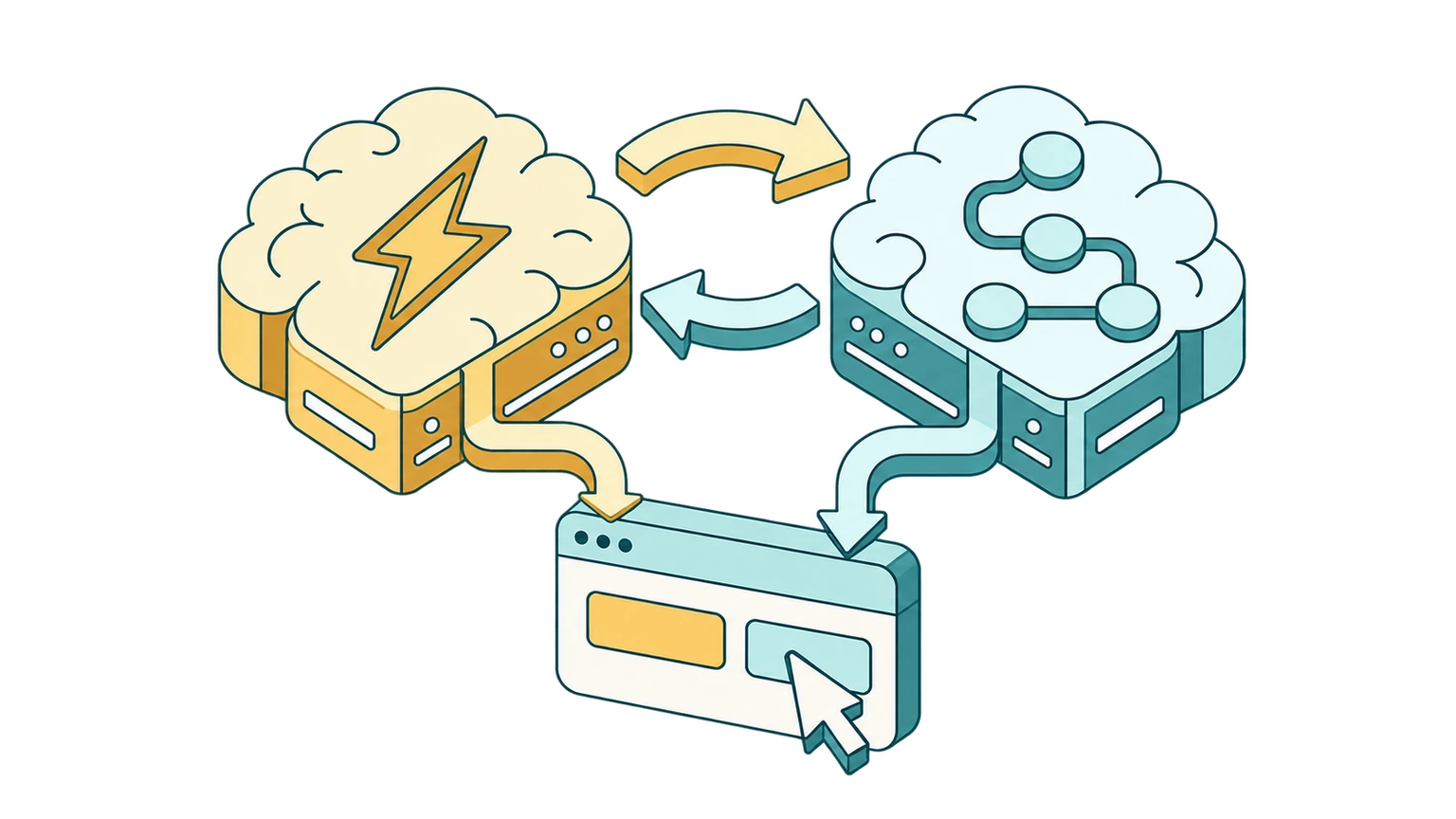
What Is an AI Decision Model? How Jev Makes Browser Automation 50x Cheaper
An AI decision model answers instead of writing text. Learn how System 1 vs System 2 thinking and models like Jev cut browser automation costs by up to 50x.