
 Add to Chrome
Connect a Local LLM or Custom AI to Your Browser with SurfMind
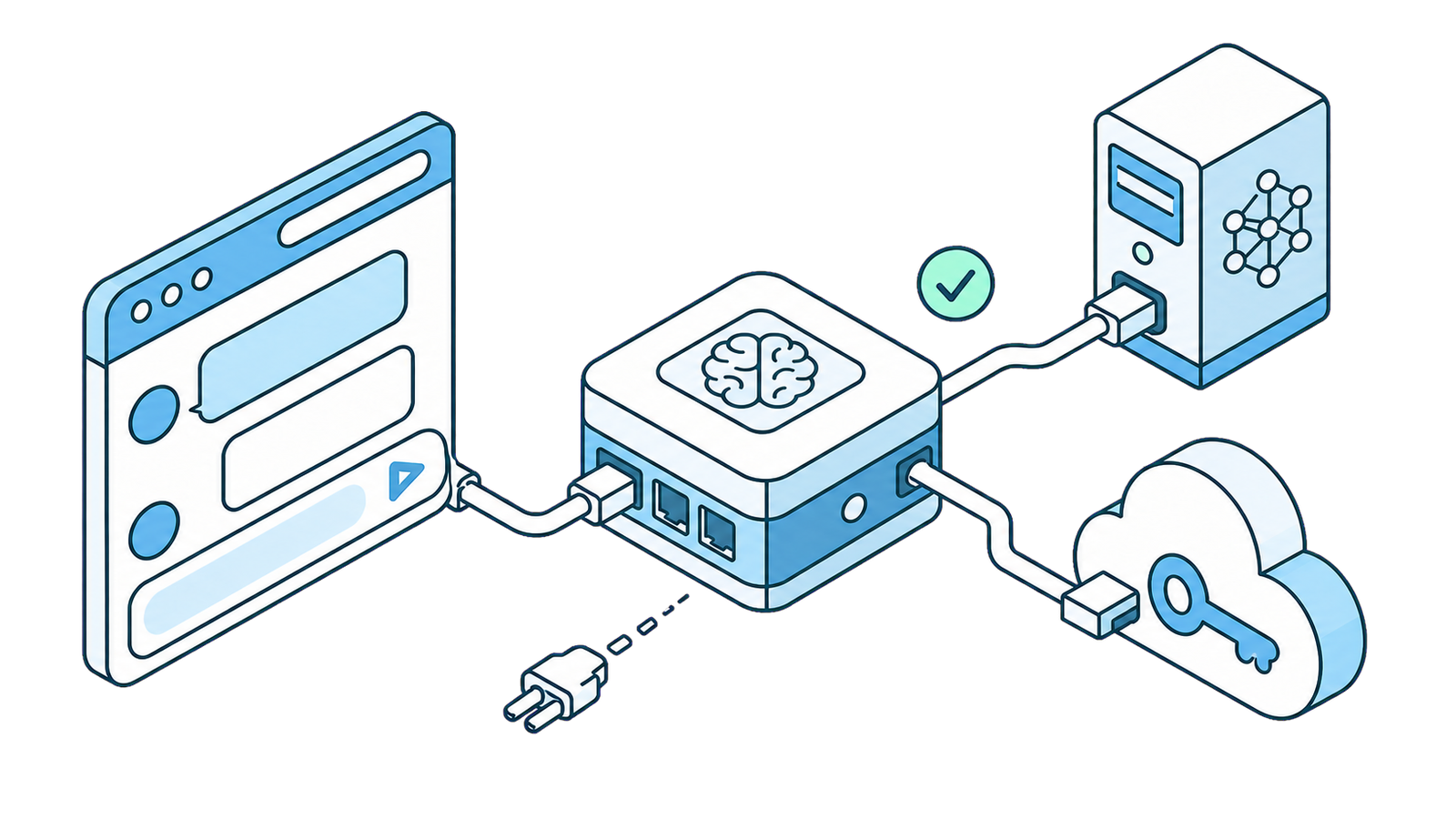
SurfMind doesn't lock you into one set of models. Through the Custom Model API, you can point it at a model running on your own machine (Ollama, LM Studio, Jan, llama.cpp, vLLM) or at almost any external AI provider that speaks the OpenAI completion API — Poe, z.ai, Together, Groq, DeepSeek, AWS Bedrock, and dozens more.
The catch: when it doesn't work on the first try, it could be because of a small config mistake. The error you get back ("connection failed," "401," "404," "model not found") could be tricky.
This post is a quick check and self-help guide. Skim the checklist and confirm your setup. If it still doesn't work, drop us an email at wave@surfmind.ai.
Look for a specific provider? Check out our list: local models (Ollama, LM Studio, Jan…) or AI providers (Poe, z.ai, Together, Groq, AWS…).
The 60-second checklist
Before anything else, run through these. Most setup problems come down to one of them:
- Is the server actually running? For local models, the runner (Ollama, LM Studio, etc.) has to be started and have a model loaded.
- Is the port right? Ollama is
11434. LM Studio is1234. They are not interchangeable, and this is the single most common mistake. - Is the path right? Ollama's native path is
/api/chat. Almost everything else is/v1/chat/completions. Mixing them up gives you an error. - Is the scheme right —
httporhttps? Local models onlocalhostusehttp://(nos). Cloud providers usehttps://. Getting this backwards looks like a dead connection. - Did you paste the full endpoint, not just the base? SurfMind's API URL field wants the complete URL ending in
/chat/completions(or/api/chatfor Ollama), not justhttps://api.provider.com/v1. - Is the API key (and its header) correct? Local runners usually need no key. External providers need
Authorizationas the header and your real key as the value. - For local models in the browser: is CORS allowed? This is the one extra step local setups need (
OLLAMA_ORIGINS, or "Enable CORS" in LM Studio).
If you're still stuck after that, read on — each of these has a subtle version that catches people.
Where to find the Custom Model form
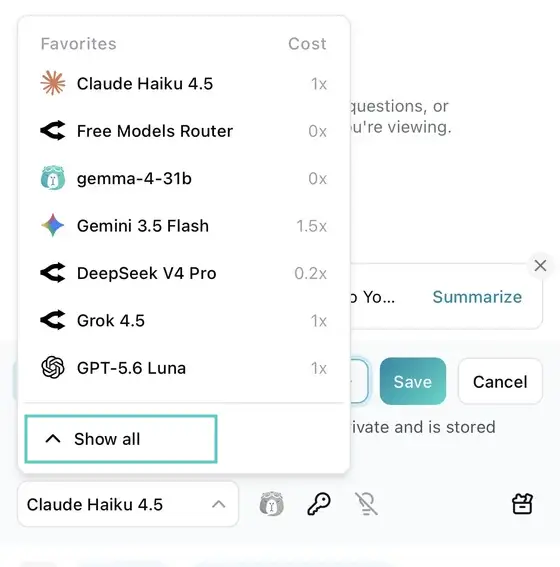
If you're not sure how to open the form in the first place, it's three quick taps from the model picker:
Step 1. Click the model name at the bottom of the SurfMind panel to open your Favorites, then click Show all.
Step 2. In the roll-up that appears, switch to the Custom tab.
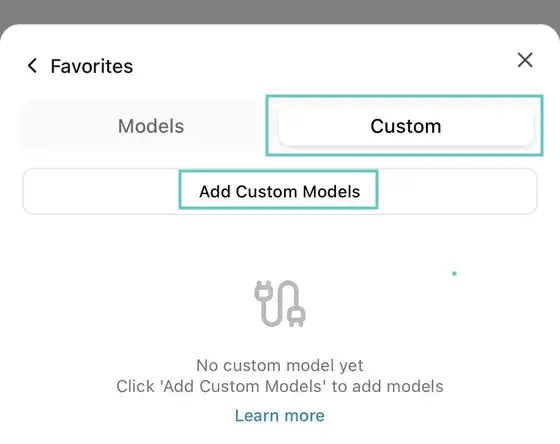
Step 3. Click Add Custom Models. The "Custom Model API" form opens.
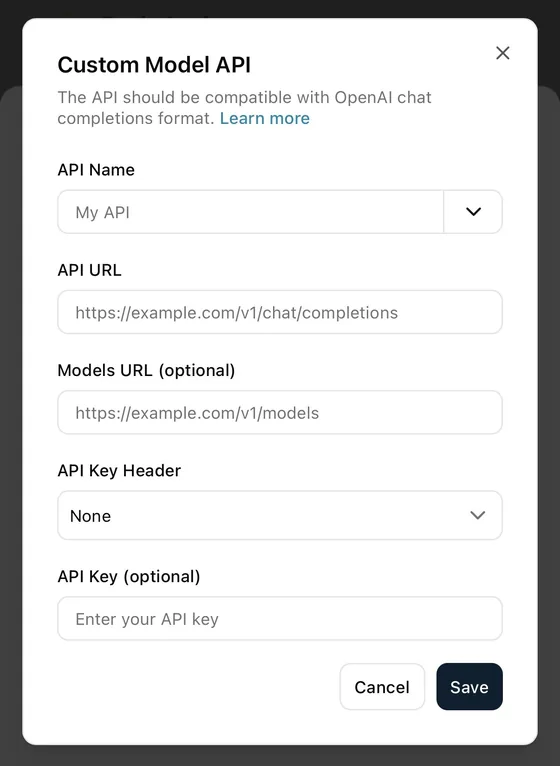
What goes in each field
When you open Custom tab → Add Custom Models, you get the "Custom Model API" form. Here's exactly what each field wants:
| Field | What to enter |
|---|---|
| API Name | Any label you like (e.g. "Groq" or "My Ollama"). Click the dropdown arrow to load a preset — Ollama and a generic OpenAI-compatible option fill the rest in for you. |
| API URL | The full chat endpoint, not the base URL. For Ollama that's http://localhost:11434/api/chat; for everyone else it ends in /chat/completions. See Mistake #1. |
| Models URL (optional) | The endpoint that lists available models, so SurfMind can show them in a dropdown instead of making you type names. Ollama: /api/tags. OpenAI-compatible: /v1/models. Leave blank if the provider has no list endpoint — you'll just type the model id yourself. |
| API Key Header | How your key is sent. None = no auth (local models). Authorization = Authorization: Bearer <key>, which nearly every cloud provider uses. x-api-key = x-api-key: <key>, used by Anthropic-style APIs and a few others. |
| API Key (optional) | The key itself — nothing more. Don't type the word Bearer; SurfMind adds it. Leave empty for local models. |
The two fields people get wrong are API URL (base vs. full endpoint) and API Key Header (which header). The rest of this guide drills into those.
Mistake #1: the API URL path (the /api/chat vs /v1/chat/completions trap)
This is the big one, and it's worth understanding why it happens.
There are two different API "dialects" in this world:
- Ollama's native API, which uses
http://localhost:11434/api/chat. - The OpenAI completion API, which uses
.../v1/chat/completions. This is what LM Studio, vLLM, Jan, Poe, z.ai, Together, Groq — basically everyone else — speaks.
So if you copy a setup guide written for LM Studio and try to use that path with Ollama (or vice versa), you'll get a 404 even though the server is running perfectly. The server is up; you're just knocking on the wrong door.
| Runner / provider | Correct API URL |
|---|---|
| Ollama (native) | http://localhost:11434/api/chat |
| Ollama (OpenAI-compatible mode) | http://localhost:11434/v1/chat/completions |
| LM Studio | http://localhost:1234/v1/chat/completions |
| Everyone OpenAI-compatible | https://<host>/v1/chat/completions |
Good to know: Ollama actually speaks both dialects. The Ollama preset in SurfMind uses the native
/api/chatpath, which is the simplest route and gives you automatic model discovery. You only need Ollama's/v1/chat/completionspath if a tool specifically demands the OpenAI format. For SurfMind, just use the preset.
Mistake #2: the port number
Every local runner picks its own default port, and they look similar enough to fat-finger:
| Tool | Default port | Full chat URL |
|---|---|---|
| Ollama | 11434 |
http://localhost:11434/api/chat |
| LM Studio | 1234 |
http://localhost:1234/v1/chat/completions |
| Jan | 1337 |
http://localhost:1337/v1/chat/completions |
llama.cpp (llama-server) |
8080 |
http://localhost:8080/v1/chat/completions |
| vLLM | 8000 |
http://localhost:8000/v1/chat/completions |
| LocalAI | 8080 |
http://localhost:8080/v1/chat/completions |
11434 vs 1234 is the classic mix-up — they're easy to confuse at a glance, but one digit off and nothing connects. If you changed the port yourself (e.g. you ran vLLM with --port 9000), use your port, not the default.
Quick sanity check: open the port in your browser. Visiting http://localhost:11434 should show Ollama's "Ollama is running" message. If the page doesn't load at all, the server isn't up or you have the wrong port.
Mistake #3: pasting the base URL instead of the endpoint
Provider docs almost always give you a base URL — something like https://api.poe.com/v1. That's because their code samples use the OpenAI SDK, which appends /chat/completions for you under the hood.
SurfMind's API URL field does not do that for you. It expects the complete endpoint. So you have to add the path yourself:
- Base URL from docs:
https://api.poe.com/v1 - What you paste into SurfMind:
https://api.poe.com/v1/chat/completions
Same idea for the Models URL field (used to auto-list available models): take the base and add /models → https://api.poe.com/v1/models.
Two related slip-ups:
- Double
/v1. If the base already ends in/v1, don't add another..../v1/v1/chat/completionsis a 404. - Trailing slashes.
.../chat/completions/with a trailing slash can fail on some servers. Drop it.
Mistake #4: http vs https mismatch
The scheme at the front of the URL matters, and mixing it up produces a "connection failed" that looks like the server is down when it isn't.
- Local models are
http. Ollama, LM Studio, Jan, llama.cpp — anything onlocalhost— serves plainhttp://. Typinghttps://localhost:11434fails, because there's no TLS certificate on a local server. If you copied a snippet withhttpsin front oflocalhost, drop thes. - Cloud providers are
https. Poe, z.ai, Together, Groq, and the rest only accepthttps://. Sendinghttp://to them gets refused or silently redirected.
There's also a browser-security angle: pages served over https block requests to plain http endpoints ("mixed content"). SurfMind handles http://localhost as a trusted exception, so local models work — but a bare LAN IP like http://192.168.1.50:11434 may still be blocked. If you're pointing at another machine on your network, prefer https, or serve the model behind a local https proxy.
Rule of thumb: http for localhost, https for everything on the public internet.
Mistake #5: the Models URL doesn't match the API URL
The Models URL is optional. It's the endpoint SurfMind calls to fetch the list of models a provider offers, so it can show them in a dropdown instead of making you type names. If your models don't show up in the picker after saving, this field is usually the culprit. It has to follow the same dialect as the chat endpoint:
| Dialect | Models URL |
|---|---|
| Ollama (native) | http://localhost:11434/api/tags |
| OpenAI-compatible (everyone else) | https://<host>/v1/models |
A common mistake is mixing them — using /api/tags with an OpenAI-compatible provider, or /v1/models with the Ollama native preset. If you used the Ollama preset, this is filled in for you correctly; leave it alone.
When to leave it blank: some providers don't expose a public model-list endpoint, or block it. That's fine — leave Models URL empty and just type the exact model id into the model field yourself (see Mistake #8). The chat will still work; you just won't get the auto-populated dropdown.
Mistake #6: the API Key Header (Bearer vs x-api-key)
The API Key Header dropdown decides how your key is attached to the request. Pick the wrong one and you'll get a 401 Unauthorized even with a perfectly valid key. There are three choices:
| API Key Header | What SurfMind sends | Use it for |
|---|---|---|
| None | nothing | Local models usually don't need auth but it's worth confirming your actual setup. |
| Authorization | Authorization: Bearer <your key> |
Almost every cloud provider: Poe, z.ai, Together, Groq, DeepSeek, Mistral, Fireworks, xAI, AWS Bedrock. This is the default for OpenAI-compatible APIs. |
| x-api-key | x-api-key: <your key> |
Anthropic-style APIs and a handful of providers that expect a raw key header instead of a Bearer token. |
Then the API Key field takes only the key itself:
- Don't type the word
Bearer— SurfMind adds it when you choose Authorization. - Don't leave a trailing space (a surprisingly common cause of 401s).
- For local models, leave it empty. (LM Studio is the exception — it wants some non-empty value; its own docs use
lm-studio.)
If unsure which header a provider uses: 99% of OpenAI-compatible providers use Authorization. Only reach for x-api-key if the provider's docs explicitly show an x-api-key header. Still getting a 401? Regenerate the key, double-check the header choice, and confirm there's no stray space.
Mistake #7: CORS — the local-only gotcha
Browsers refuse to call a local server unless that server explicitly allows requests from the extension. This trips up local setups specifically (external providers already allow it).
Ollama: start it with browser access enabled:
# Mac/Linux
OLLAMA_ORIGINS="*" ollama serve

# Windows (PowerShell)
$env:OLLAMA_ORIGINS="*"; ollama serve
"port 11434 already in use"? The Ollama background app is already running. Quit it first (menu bar on Mac, system tray on Windows), then run the command above.
LM Studio: in the Developer / local server tab, toggle Enable CORS on before starting the server.
One more subtlety: if localhost doesn't connect, try 127.0.0.1 instead (or the reverse). On some systems they don't resolve the same way.
Mistake #8: the model name has to match exactly
Once you're connected, the model name you select has to match what the provider expects — exactly, including capitalization. This bites people on providers that don't auto-list models, or that use unusual naming:
- Poe uses display-style bot names like
Claude-Sonnet-4.6andGPT-5.4— copy them exactly as they appear on Poe. - z.ai uses ids like
glm-4.6andglm-5. - Together AI uses namespaced ids:
meta-llama/Llama-3.3-70B-Instruct-Turbo,deepseek-ai/DeepSeek-V3. - Fireworks uses a full path id:
accounts/fireworks/models/llama-v3p3-70b-instruct.
If the connection works but you get "model not found," it's almost always a name typo or wrong casing. When SurfMind can auto-list models via the Models URL, pick from the list instead of typing.
Quick reference: local models
All of these run on your own machine. Open SurfMind's Custom tab → Add Custom Models, pick the matching preset (Ollama has its own; the rest use the generic OpenAI-compatible preset), and set API Key Header to None. Provider names link to each tool's setup docs.
- API URL:
http://localhost:11434/api/chat - Models URL:
http://localhost:11434/api/tags - API key: none
- API URL:
http://localhost:1234/v1/chat/completions - Models URL:
http://localhost:1234/v1/models - API key: any non-empty value (e.g.
lm-studio)
- API URL:
http://localhost:1337/v1/chat/completions - Models URL:
http://localhost:1337/v1/models - API key: none (or your Jan key)
- API URL:
http://localhost:8080/v1/chat/completions - Models URL:
http://localhost:8080/v1/models - API key: none (unless you started it with
--api-key)
- API URL:
http://localhost:8000/v1/chat/completions - Models URL:
http://localhost:8000/v1/models - API key: your
--api-keyif you set one
- API URL:
http://localhost:8080/v1/chat/completions - Models URL:
http://localhost:8080/v1/models - API key: none
Don't forget the CORS step (Mistake #7) for any of these. For Ollama specifically, the full walkthrough with screenshots is in our Ollama guide, and if you're deciding between the first two, see Ollama vs LM Studio.
Quick reference: popular AI providers
These cloud providers all speak the OpenAI-compatible API. Use the generic OpenAI-compatible preset, set the API Key Header to Authorization (they all use Bearer tokens), and paste your key. Provider names link to each provider's API docs.
Poe — one key for hundreds of models (Claude, GPT, Gemini, Llama…), billed against your Poe subscription points. Model names are display-style bot names — copy them exactly as shown on Poe (e.g. Claude-Sonnet-4.6, GPT-5.4). Key from poe.com → Settings → API key.
- API URL:
https://api.poe.com/v1/chat/completions - Models URL:
https://api.poe.com/v1/models
CanopyWave — GPU-cloud provider serving open models (Kimi, DeepSeek, Llama, Qwen). Key from the CanopyWave dashboard.
- API URL:
https://inference.canopywave.io/v1/chat/completions - Models URL:
https://inference.canopywave.io/v1/models
z.ai (GLM) — Zhipu's GLM models (glm-4.6, glm-5). Watch out: z.ai also publishes a separate Coding Plan endpoint (https://api.z.ai/api/coding/paas/v4) and a PaaS endpoint (https://api.z.ai/api/paas/v4) — use the OpenAI-compatible one below and don't add an extra /v1.
- API URL:
https://api.z.ai/api/openai/v1/chat/completions - Models URL:
https://api.z.ai/api/openai/v1/models
Together AI — large open-model catalog. Model ids are long (meta-llama/Llama-3.3-70B-Instruct-Turbo) — copy them exactly from Together's model page.
- API URL:
https://api.together.xyz/v1/chat/completions - Models URL:
https://api.together.xyz/v1/models
Groq — extremely fast inference. Gotcha: the path is /openai/v1, not just /v1.
- API URL:
https://api.groq.com/openai/v1/chat/completions - Models URL:
https://api.groq.com/openai/v1/models
DeepSeek — current models are deepseek-v4-flash and deepseek-v4-pro (the older deepseek-chat / deepseek-reasoner aliases are being retired — check DeepSeek's docs for the latest). The /v1 is optional; DeepSeek accepts the URL with or without it.
- API URL:
https://api.deepseek.com/v1/chat/completions - Models URL:
https://api.deepseek.com/v1/models
Mistral — mistral-large-latest, mistral-small-latest, etc. Standard OpenAI-compatible.
- API URL:
https://api.mistral.ai/v1/chat/completions - Models URL:
https://api.mistral.ai/v1/models
Fireworks AI — gotcha: the path is /inference/v1, not /v1. Model ids look like accounts/fireworks/models/llama-v3p3-70b-instruct.
- API URL:
https://api.fireworks.ai/inference/v1/chat/completions - Models URL:
https://api.fireworks.ai/inference/v1/models
xAI (Grok) — Grok models (grok-4, etc.). Standard OpenAI-compatible.
- API URL:
https://api.x.ai/v1/chat/completions - Models URL:
https://api.x.ai/v1/models
AWS Bedrock — Bedrock now has an OpenAI-compatible endpoint, but with two gotchas: the host is region-specific (e.g. us-west-2) and the path is /openai/v1. You must use a Bedrock API key (a bearer token you generate in the console) — not your normal AWS access keys/SigV4. Model ids look like openai.gpt-oss-120b-1:0.
- API URL:
https://bedrock-runtime.<region>.amazonaws.com/openai/v1/chat/completions - Models URL: leave blank — enter model id later
Still not connecting? Final triage
Work down this list:
- Open the API URL's host in your browser. Local server not loading → it's not running, or wrong port.
- Re-read the path. Ollama →
/api/chat. Everyone else →/v1/chat/completions(or the provider's special path from the table). - Confirm you pasted the full endpoint, not the base, and that there's no double
/v1or trailing slash. - 401? It's the key or header. Header =
Authorization, key with no spaces, noBearerprefix. - 404 "model not found"? Connection is fine — fix the model name (exact case).
- Local model, browser blocked? Enable CORS (
OLLAMA_ORIGINS="*"or LM Studio's toggle), and try127.0.0.1vslocalhost.
That sequence resolves the overwhelming majority of setups.
Still need help?
If you've worked through the checklist and your provider still won't connect, email us at wave@surfmind.ai with the provider you're trying and the error you see. We'll help you get it connected.
Got it connected? Open SurfMind on the next page you were going to read and put your model to work.
Recent posts
View all
Ollama vs LM Studio: Which Local AI Tool Is Right for You?
A practical, no-hype comparison of Ollama and LM Studio for running AI models locally in 2026, plus how to use either one to chat with any web page.

BYOK Meaning: What 'Bring Your Own Key' Is and Why It's the Future of AI Tools
BYOK means Bring Your Own Key: you connect your own API key to AI tools instead of paying subscriptions. Learn what BYOK means, how it saves 40–90%, and how to start in 5 minutes.
The Best ChatGPT Alternatives in 2026 (Most Are Free)
Looking for a ChatGPT alternative? Honest comparison of Claude, Gemini, DeepSeek, Perplexity, local models, and more, including free options and how to use them all without extra subscriptions.